
Updating the Plugin
From 1.5.0 the plugin can update itself. It checks GitHub for a new release, verifies the download against a signature, and swaps the files while MusicBee is closed, putting the old ones back if anything goes wrong.
Checking is opt-in
Automatic checking is off by default. A check is an unprompted request to github.com, so turning it on is your decision. The Check for updates automatically checkbox in the Updates group of the settings panel controls it.
The Check now button always works, whether or not automatic checking is enabled. When automatic checking is on, the plugin checks once per session, about a minute after it starts, and at most once every 24 hours after that.
Nothing is downloaded to decide whether an update exists, and no personal information is sent. The plugin asks GitHub for the release description and compares version numbers.
The three steps
The Updates group shows one status line and one button, and the button changes as you go:
| Status | Button | What happens |
|---|---|---|
| Up to date, or never checked | Check now | Asks GitHub whether there is a newer release |
| Update available | Download | Downloads and verifies the new version |
| Downloaded, ready | Install and restart | Closes MusicBee, swaps the files, reopens it |
| Checking or downloading | (disabled) | Only one of these runs at a time |

Nothing is installed without you pressing the button. A downloaded update sits on disk until you choose to apply it, and it survives a later check, so you will not lose it by pressing Check now again.
What happens when you press Install and restart
The plugin tells you what is about to happen before anything is touched:
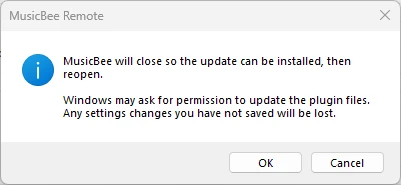
Unsaved changes in the settings panel are lost, so press Save first if you have made any.
- The plugin checks the downloaded files against the release signature a second time.
- It starts a small helper program,
mbrc-helper.exe, which does the actual replacing. - MusicBee closes. The plugin files are in use while it runs, so they cannot be replaced until it does.
- The helper copies the old files aside, writes the new ones, and reopens MusicBee.
If a file cannot be written, the helper puts back everything it had already replaced, so a failed update leaves a working installation rather than a half-updated one.
MusicBee has to actually exit
If MusicBee is configured to minimise to the tray when closed, it will not exit, and the update cannot proceed. The helper gives up after two minutes without touching anything, and the downloaded update stays ready for the next time MusicBee really closes.
Whether you are asked for administrator permission
This depends on where MusicBee is installed, and it is the only part of updating that differs between installations.
| Your installation | Plugins folder | Administrator prompt |
|---|---|---|
Installer (C:\Program Files (x86)\MusicBee) | not writable by you | Yes |
| Portable (anywhere you chose) | writable by you | No |
| Microsoft Store | inside the app's own storage | No |
The plugin decides by trying to write to the plugins folder, not by guessing from the path, so an installer-based MusicBee placed somewhere writable will not prompt either.
When you are prompted
The confirmation dialog above warns you this is coming: "Windows may ask for permission to update the plugin files". The prompt itself appears immediately after you confirm, while MusicBee is still open. That is deliberate: if you decline, the plugin can tell you so and leave the downloaded update in place. Nothing has been changed, and you can press the button again later.
The prompt is for mbrc-helper.exe, which ships with the plugin. It is not digitally signed, so Windows will describe the publisher as unknown.
Why administrator permission is needed at all
Only to write into C:\Program Files (x86), which Windows protects. The plugin itself never runs with administrator rights, and neither does MusicBee. The helper is the only part that does, it runs for a few seconds, and it only writes the files listed in the signed release.
Microsoft Store installations
The Store version keeps its plugins inside the app's own storage, which you can already write to, so updating never prompts. MusicBee is reopened through Windows' app activation rather than by running the program file directly, because Windows does not allow the Store copy of MusicBee.exe to be launched by path.
How an update is verified
Every release publishes a manifest.json listing the SHA-512 of each file, signed with the project's release key. The plugin has the matching public keys built in, so it verifies updates on your machine with nothing to install and no network round trip.
- A download that does not match the signature is refused and deleted.
- Each file is checked again, immediately before it is written.
- An update that is not newer than what you have is refused, even if it is correctly signed. The updater will not roll you back to an older release.
This is why the plugin will not install a build you compiled yourself: it is not signed by the project key.
Release channels
There are two channels:
- stable: released versions only. This is the default.
- testing: pre-releases as well, for trying fixes before they ship.
There is no setting for this in the panel; switching channel is a deliberate act. Edit update_channel in core_settings.json in the plugin's storage folder:
{
  "update_channel": "stable"
}
The accepted values are stable and testing.
Restart MusicBee afterwards, because the setting is read when the plugin starts. Saving the settings panel will not overwrite it.
Switching channel never downgrades you in either direction. Moving from testing back to stable while running a pre-release offers you nothing until the final release overtakes it; if you want off a pre-release immediately, install the stable version by hand.
Updating by hand
Automatic updating is a convenience, not the only route. You can always download the new version and install it the same way you installed the first one. See Installation. Doing so is the way to move between channels immediately, to recover from a failed update, or to install a version the updater refuses.
Upgrading from a 1.5.0 beta
Because of a versioning fault in the 1.5.0 beta builds, plugins from 1.5.0-beta.1 through 1.5.0-beta.3 report their version as plain 1.5.0 and will never be offered an update, including 1.5.0 itself. If you ran one of those betas, install 1.5.0 by hand once, and automatic updating will work normally from then on.