
Configuring the Plugin
The settings panel opens automatically on first run. To reopen it later, use MusicBee menu → Tools → MusicBee Remote.
Changes are not saved until you press Save; Close discards them. Buttons that act immediately, rebuilding a cache, checking for updates, starting a capture, are not affected by Save.
TIP
If the Tools entry is missing, check the plugin is enabled under Preferences → Plugins.
The panel is organised into groups. On a small screen the group column scrolls, with Save and Close staying visible at the bottom.
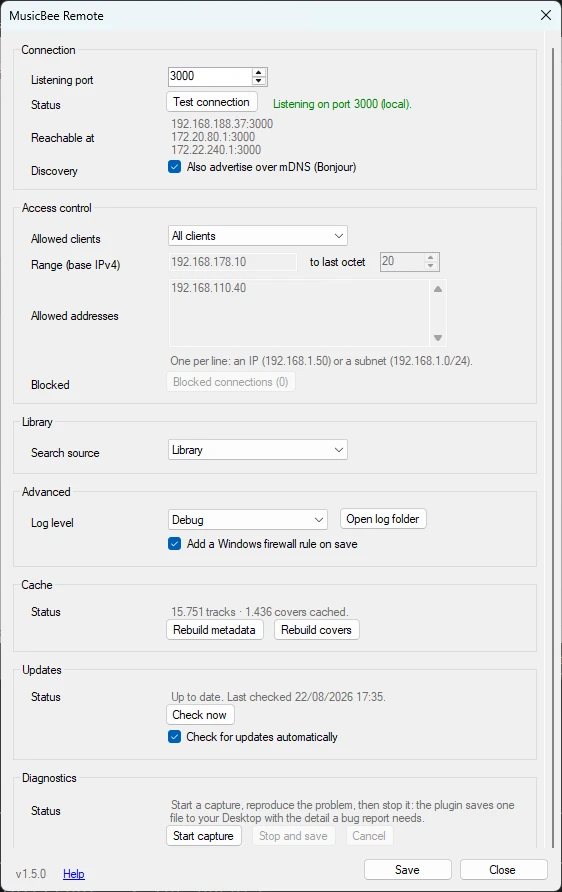
Connection
Listening port: the port the plugin listens on (default 3000). It must not be in use by another program. You need this when configuring the app by hand.
Status: whether the plugin is listening, with a Test connection button that checks it for you.
Reachable at: the addresses the plugin can be reached on. Use these if automatic discovery does not work; pick the one on the same network as your phone.
Discovery: Also advertise over mDNS (Bonjour) publishes the plugin over Bonjour in addition to the built-in discovery the app uses. Harmless to leave on.
Access control
Allowed clients controls which devices may connect:
- All clients: anything on your network. The default.
- Address range: filled in through Range (base IPv4) and to last octet. A base of
192.168.178.10with a last octet of20allows192.168.178.10to192.168.178.20. - Specific addresses: an allowlist typed into Allowed addresses, one per line, either an address (
192.168.1.50) or a subnet (192.168.1.0/24).
The fields that do not apply to the selected mode are greyed out rather than hidden.
WARNING
A reversed range blocks every connection, which looks exactly like the plugin being broken.
Blocked: the Blocked connections button shows how many attempts were refused, and opens a list of them - useful for telling "my phone is blocked by the filter" apart from "my phone never reached the PC at all".
Library
Search source selects which tag the app's library search matches against.
Advanced
Log level controls how much detail is written to the log. The default, Normal, records startup, warnings and errors; raise it only while investigating something, as the higher levels are verbose. It can also be set by hand, see Troubleshooting.
Open log folder opens the folder containing the logs and settings, including on Store installations, where that folder is not where you would expect.
Add a Windows firewall rule on save adds a rule for the chosen port when you press Save. It needs administrator permission, so you will see a prompt. It covers TCP only.
Cache
The plugin caches your library's metadata and artwork so browsing on the phone is fast.
Status reports what is cached, track count and covers. Rebuild metadata and Rebuild covers discard and recreate those caches. Both run in the background and can take a while on a large library. Reach for them when the app shows stale or missing data, not routinely.
Updates
Covered in full on the Updating page. In short: Check now, then Download, then Install and restart, with Check for updates automatically off by default. Skip this version dismisses one release without turning checking off, and Release notes opens the release on GitHub.
Diagnostics
Start capture records what happens while you reproduce a problem; Stop and save writes it to your Desktop as one file to attach to a bug report, and Cancel discards it. See Troubleshooting.
Settings without a control
A few settings live only in core_settings.json in the plugin's storage folder, deliberately - update_channel is the one most likely to matter. Editing that file is safe: saving the panel merges its changes rather than rewriting the file, so a setting with no control keeps its value.