
Troubleshooting
Logs
The plugin writes its log to mbrc-core.log in its storage folder. The quickest way there is Open log folder in the settings panel, which opens the right folder whichever way MusicBee is installed.
| Installation | Storage folder |
|---|---|
| Installer | %AppData%\MusicBee\mb_remote |
| Portable | <MusicBee folder>\AppData\mb_remote |
| Microsoft Store | %LocalAppData%\Packages\<MusicBee package>\LocalCache\Roaming\MusicBee\mb_remote |
A portable MusicBee keeps everything beside its own executable, so its storage folder is the AppData folder inside the MusicBee folder, not the one in your user profile.
The Store path is not a mistake: Windows redirects an app's %AppData% into its own storage, so the folder you see in Explorer is not the path MusicBee itself reports. The log lines themselves show the unredirected %AppData% path; look in the Packages folder above.
Files you may find there:
mbrc-core.log: the plugin's own log, capped at 10 MB. The three previous logs are kept compressed alongside it asmbrc-core.1.log.gztombrc-core.3.log.gzmbrc-bootstrap.log: the earliest startup lines, written before the main log opensinitialization_error.log: only present if the plugin failed to start; it says whymbrc-helper.log: written only when an update is applied; it is where an update that did nothing explains itself. If the helper cannot reach the storage folder it writes to%Temp%\mbrc-helper.loginsteadcore_settings.json: every setting, including the few with no panel controlmbrc.redb: the cached library metadata and artwork
Files from earlier versions
The first time 1.5.0 starts it removes what earlier versions left behind, the pre-1.5.0 logs (mbrc.log, mbrc.0.log and so on), the old settings.xml once its contents have been carried over, and firewall-utility.exe from the plugins folder, which mbrc-helper.exe replaced. On the installation this was tested against that was about 10 MB.
It only ever removes files this project shipped and no longer uses, by exact name. Nothing else in either folder is touched, including files belonging to other MusicBee plugins.
Your settings are not affected: settings.xml is only removed once core_settings.json exists, so the migration has already happened by then.
Log level
The Log level dropdown in the settings panel's Advanced group sets how much detail is recorded:
- Normal: the default. Startup, errors and warnings, with no message-by-message detail.
- Debug: adds the messages exchanged with clients, with long lists sampled.
- Trace: everything, including per-item timings such as each album cover as it is cached. Verbose enough to fill the log in minutes on a large library.
Leave it on Normal unless you are chasing a problem.
Setting it without the panel
If MusicBee crashes before you can reach the settings panel, set the level in core_settings.json instead:
Close MusicBee.
Open
core_settings.jsonfrom the storage folder in a text editor.Set
log_levelto"info"(Normal),"debug"or"trace":json{ "log_level": "debug" }Change only that value and leave the rest of the file as it is. If the key is not there yet, add it next to the others, keeping the commas between entries.
Save the file and start MusicBee.
The value must be in lower case and the file must stay valid JSON. If the plugin cannot read the file it ignores all of it and starts with default settings, so a typo resets more than the log level. Set it back to "info" once you are done.
Sending a problem report
The Start capture button in the Diagnostics group records what happens while you reproduce a fault and saves it as a single file on your Desktop.
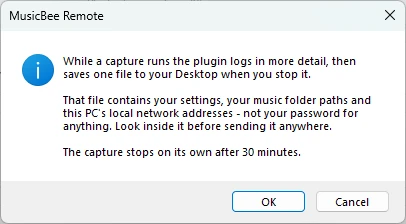
Before it starts, the plugin tells you exactly what the file will contain:
- Press Start capture.
- Do the thing that goes wrong.
- Press Stop and save.
While it runs, the panel shows how long it has been capturing and how long is left:

A capture stops on its own after 30 minutes, so forgetting about one cannot fill your disk. Cancel discards it without saving anything.
The saved bundle contains the relevant slice of the log, your settings, your music folder paths, and this PC's local network addresses. No passwords. Those paths and addresses are kept because they are usually the point of the report, so look inside before sending it anywhere. Attach it to a GitHub issue.
TIP
Capture for at least a few seconds. A capture that starts and stops immediately produces a technically valid file with nothing useful in it.
The app cannot find the PC
Check, in order:
- The plugin is listening. The settings panel shows the status and the port. If it is not running, the port is probably taken by something else, change it and press Save.
- The addresses match. The Reachable at row lists the addresses the plugin is reachable on. Your phone must be on the same network as one of them. If several are listed, the right one is the network your phone is on.
- The firewall allows it. See below.
- IP filtering is not blocking you. If you set a range or an allowlist, confirm your phone's address is inside it. A reversed range blocks everything.
Firewall
Windows must allow incoming connections on the plugin's port. With Add a Windows firewall rule on save ticked, the plugin adds the rule itself using mbrc-helper.exe, which needs administrator permission once, you will see a prompt.
If you prefer to add it manually, allow TCP on your chosen port (default 3000) for private networks.
WARNING
The rule covers TCP only. Automatic discovery also uses UDP multicast, so if your phone cannot find the PC automatically but connects fine once you enter the address by hand, discovery is what the firewall is blocking.
An update did nothing
MusicBee closed and reopened but the version did not change, or it closed and did not reopen. mbrc-helper.log in the storage folder says why, it records every step of an update, and it is written even when the update fails.
Common causes:
- MusicBee did not exit. If it is set to minimise on close, the files cannot be replaced. The log will show the helper waiting and giving up.
- The administrator prompt was declined. Nothing is changed; press Install and restart again.
- The download did not verify. The plugin refuses it and says so. Press Check now to fetch it again.
If the plugin is missing entirely after an update, the previous files are in a backup folder inside the storage folder, copy them back into the plugins folder to return to the version you had.
Reinstalling from scratch
Removing core_settings.json from the storage folder resets every setting to its default; the plugin recreates it on the next start. (On a machine upgraded from 1.4.x this is only true from 1.5.0 onward, earlier builds would have restored your old settings.xml instead of falling back to defaults.) Deleting mbrc.redb clears the cached library data, which is rebuilt on the next connection, worth trying if artwork or metadata look wrong.