
Player
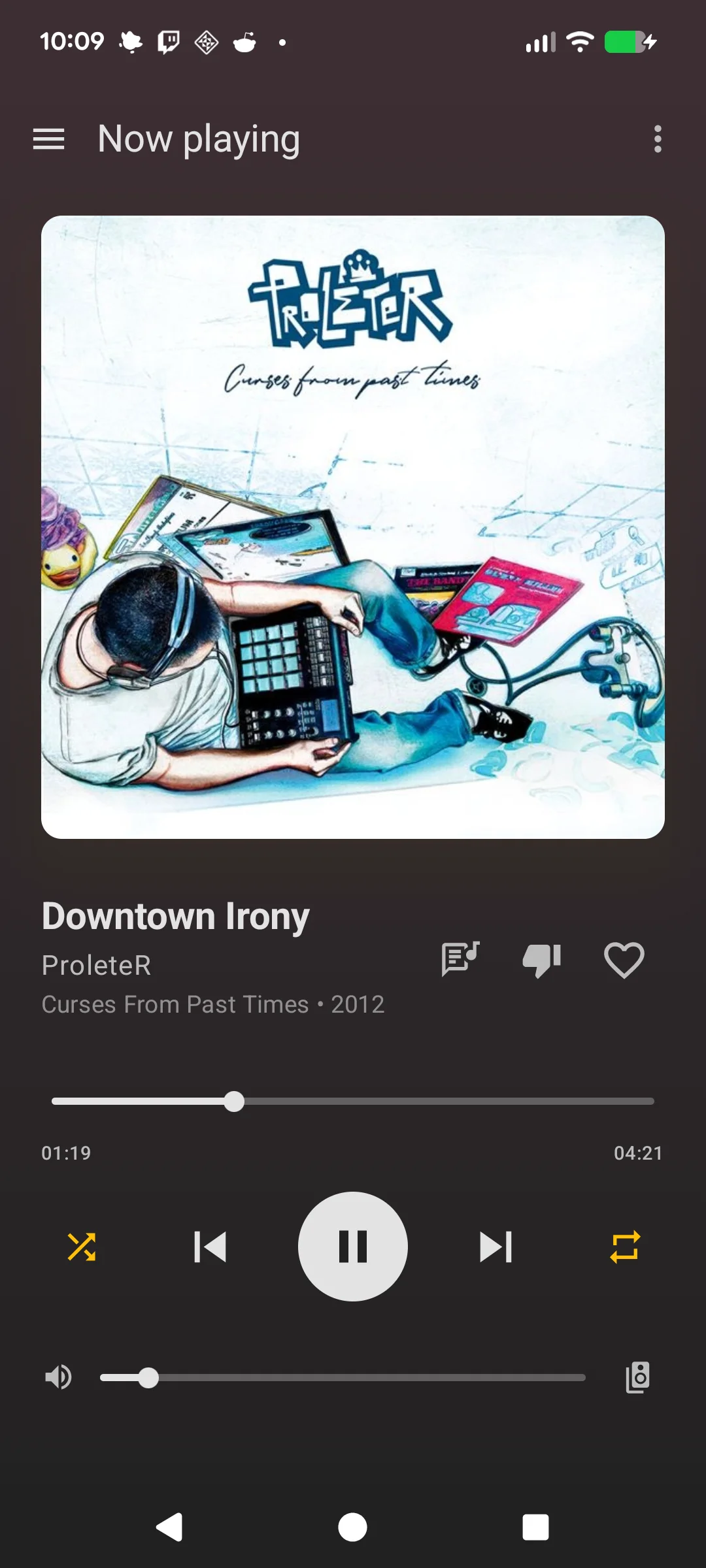
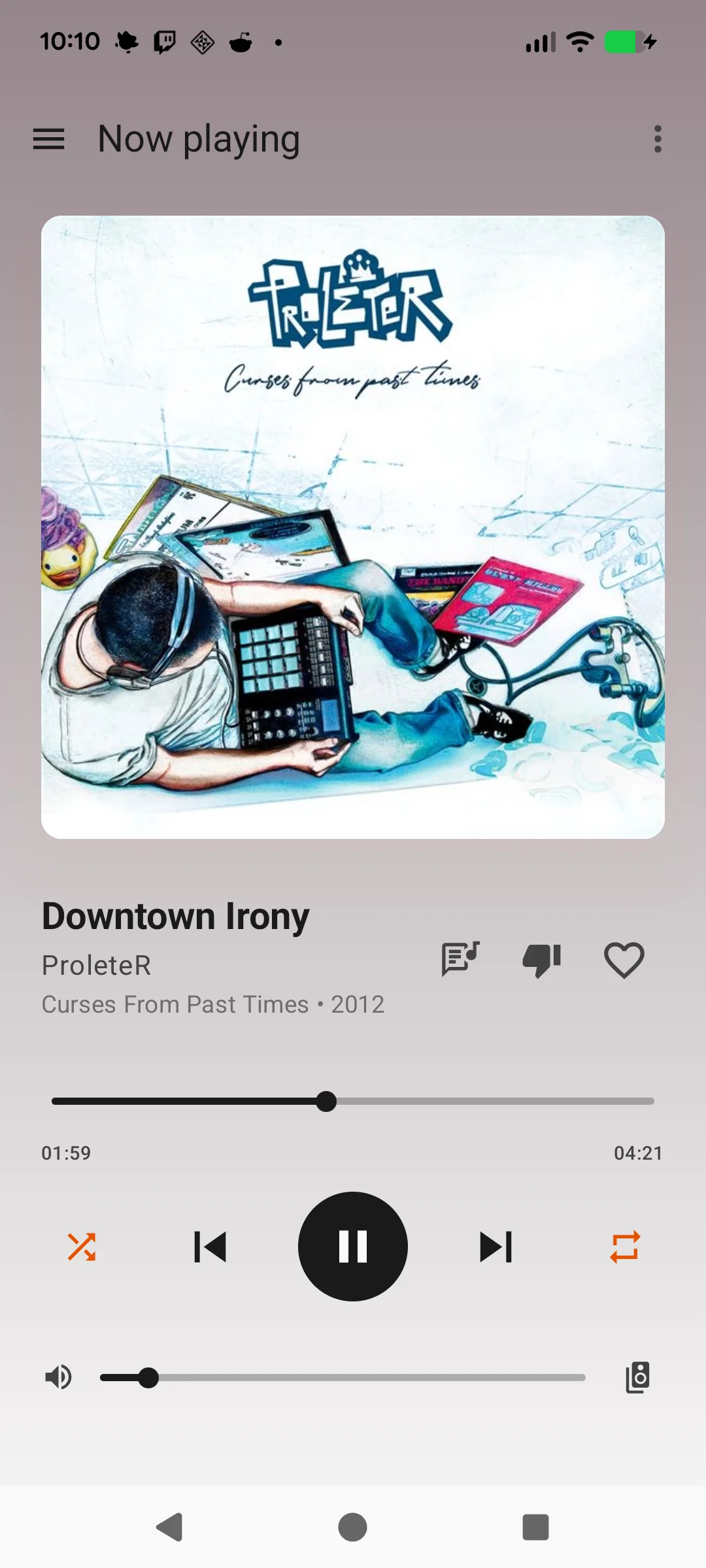
The player is the home screen of the app and supports both dark and light themes. It shows:
- Album art: Cover of the currently playing track, with dynamic color-matched background
- Track info: Title, artist, and album with year
- Progress bar: Current position and total duration; drag to seek
- Playback controls: Repeat, Previous, Play/Pause, Next, Shuffle
- Volume: Mute button and volume slider
- Heart icon: Love or unlove a track on Last.fm
- Speaker icon: Open output device selection
For streaming content (radio stations), an animated wave indicator replaces the progress bar, showing elapsed time instead.
Player Menu
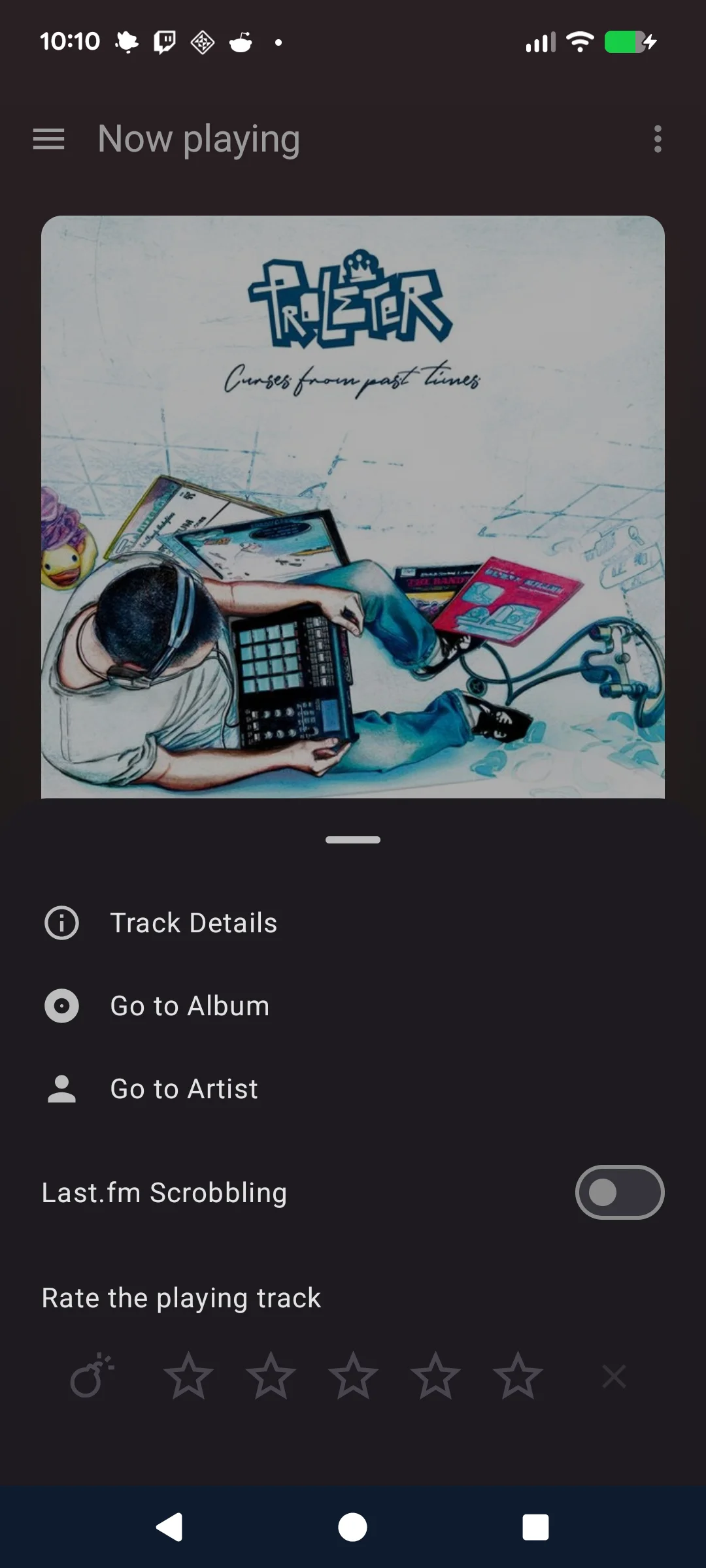
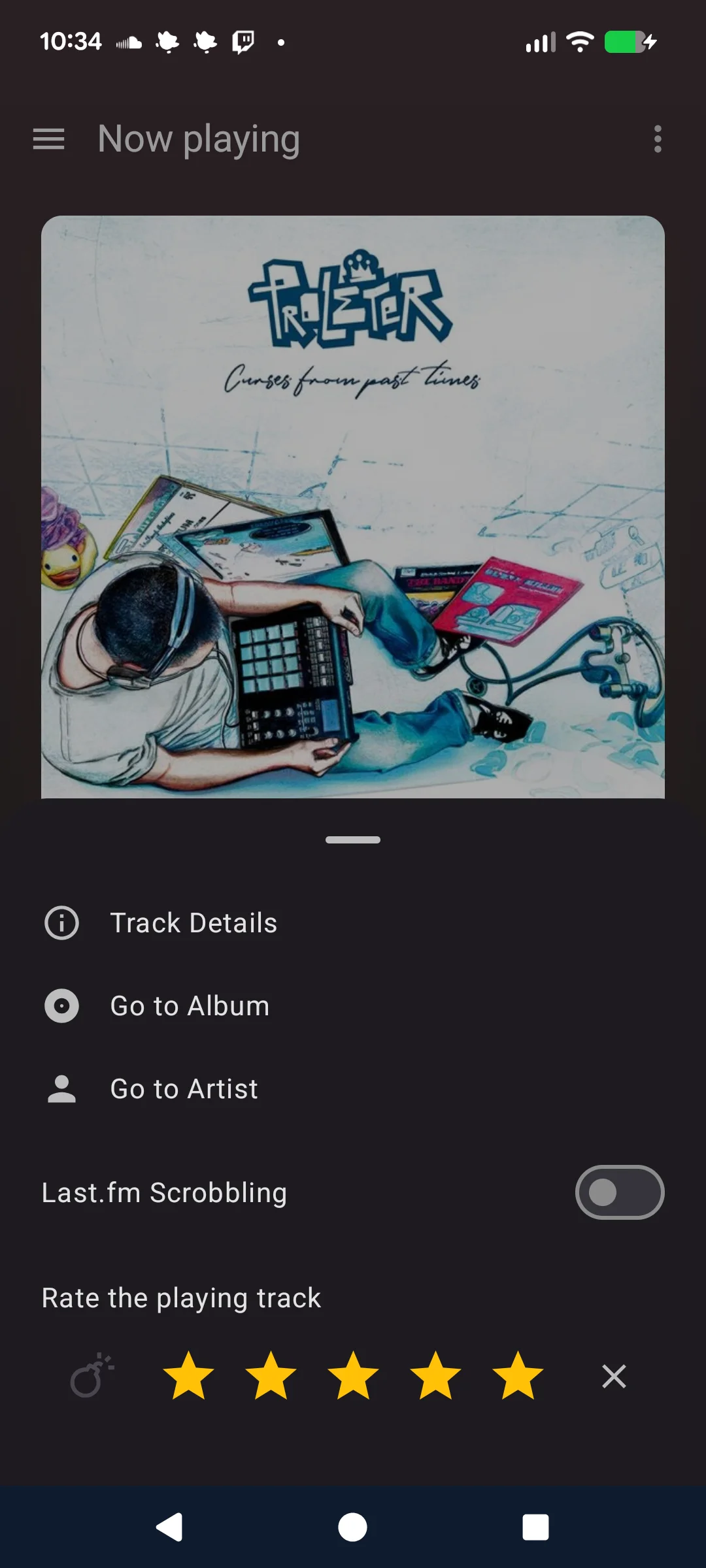
Tap the three-dot menu on the player to open the player menu. From here you can:
- Rate the track: Use the star rating bar
- Track Details: View extended metadata
- Go to Album: Navigate to the album in the library
- Go to Artist: Navigate to the artist in the library
- Last.fm scrobbling: Toggle scrobbling on/off
Ratings
The rating bar in the player menu supports:
- Star ratings: 1 to 5 stars (half-star precision can be enabled in Settings)
- Bomb rating: Mark a track as disliked
- Clear: Remove the rating
The current rating can optionally be displayed on the player screen (enable in Settings).
Track Details
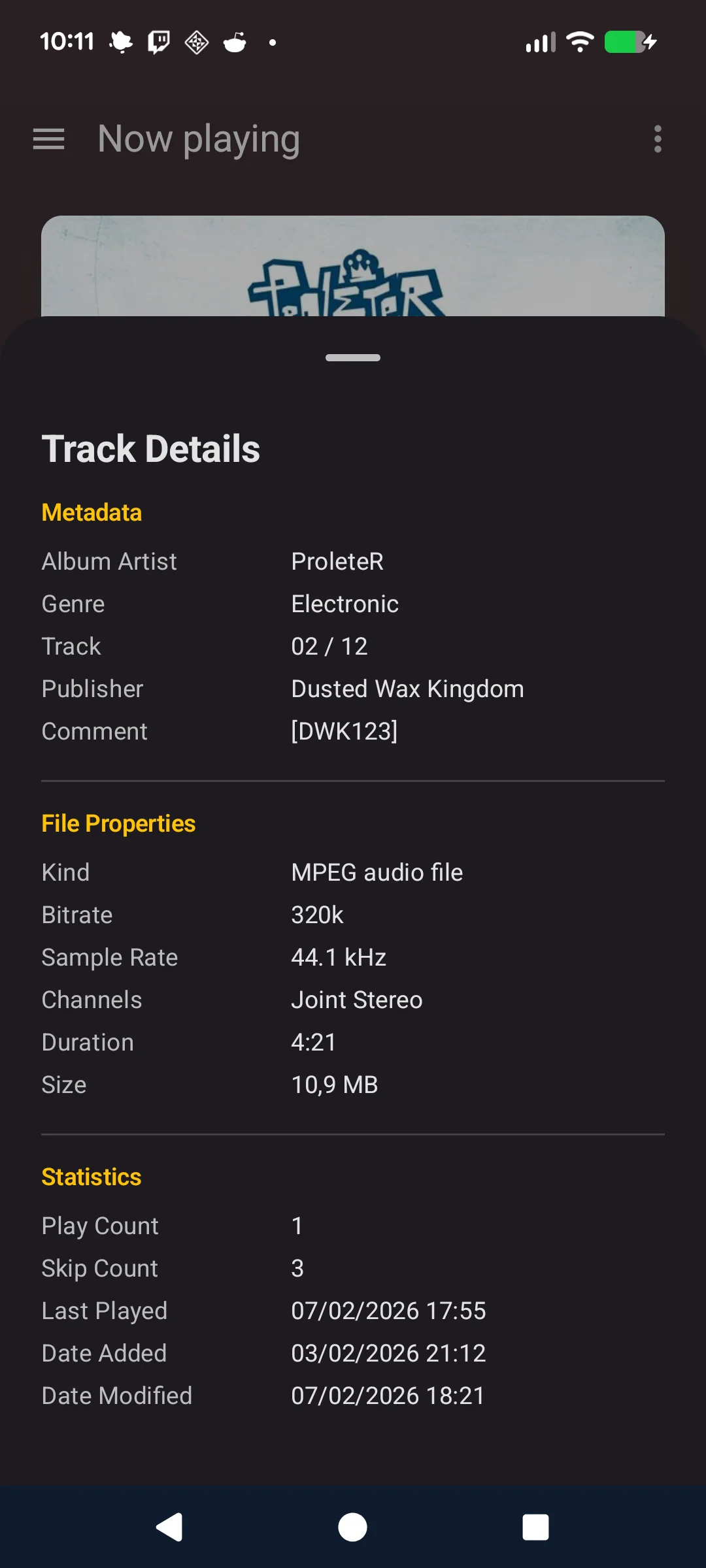
Open Track Details from the player menu to view extended metadata: album artist, genre, composer, track/disc numbers, grouping, publisher, encoder, comments, and file properties (path, size, date, bitrate, channels, format).
Lyrics
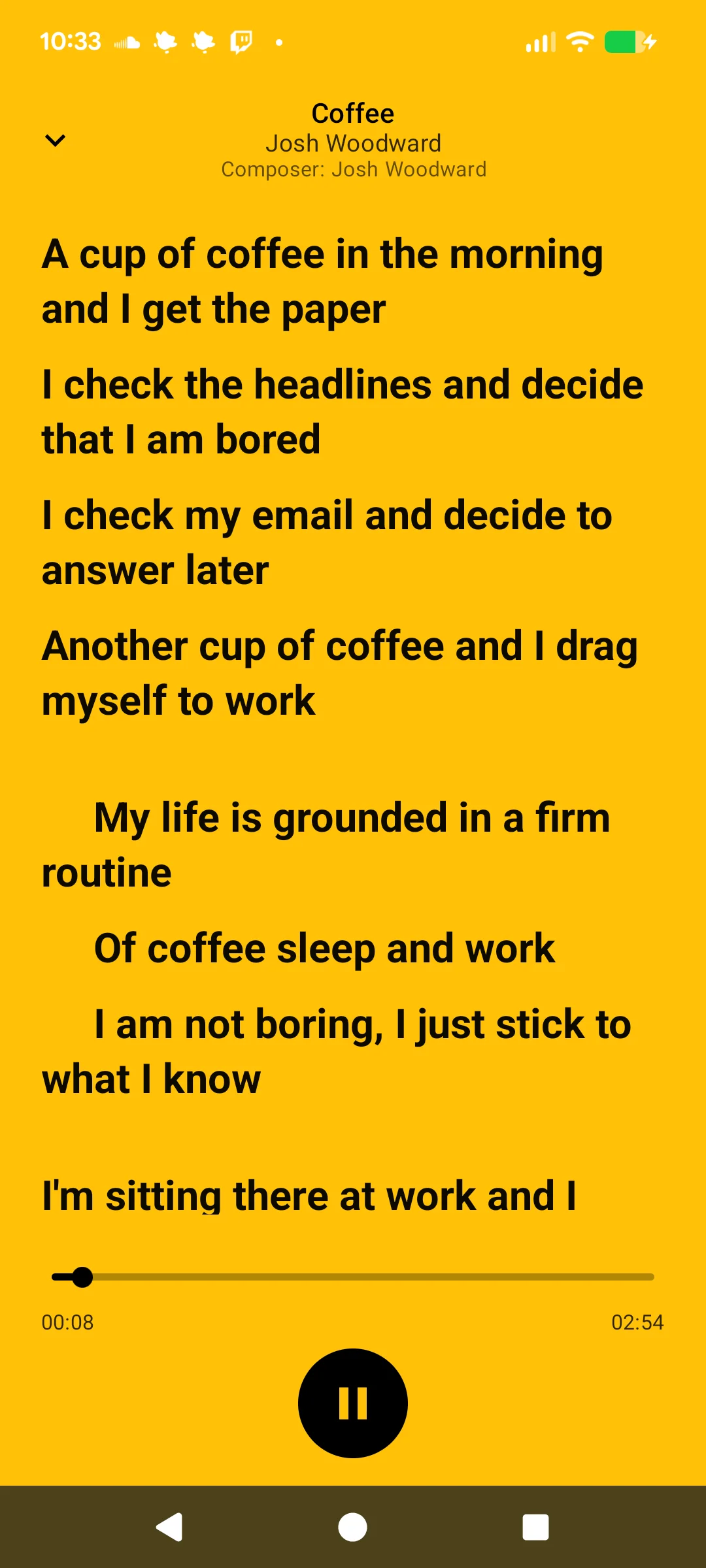
Tap the lyrics button on the player to open a full-screen lyrics overlay. Lyrics load automatically when the track changes. The overlay includes playback controls and a seek bar so you can control playback while reading.
Output Selection
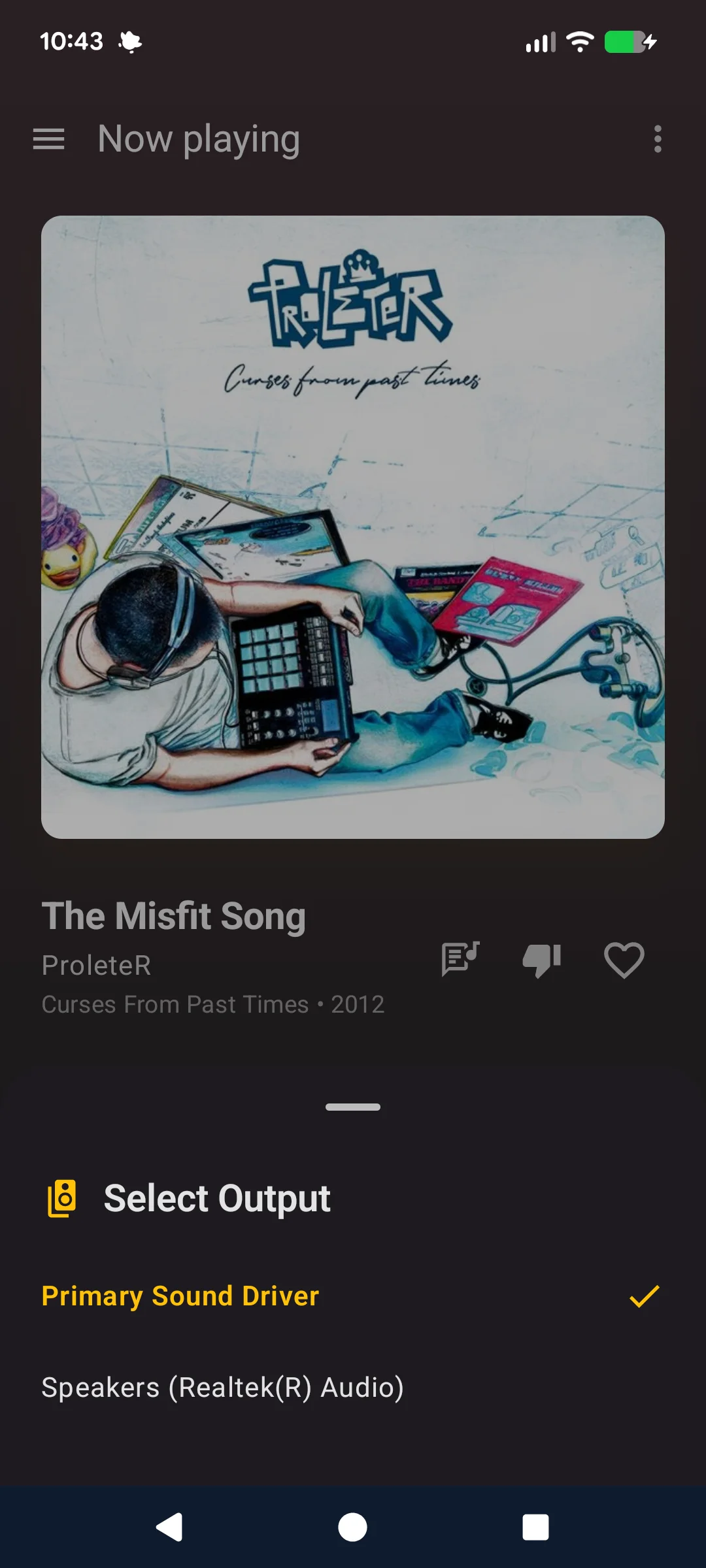
Tap the speaker icon on the player to select the audio output device. A list of available output devices is shown and you can switch between them.