
Settings & Connections
Settings
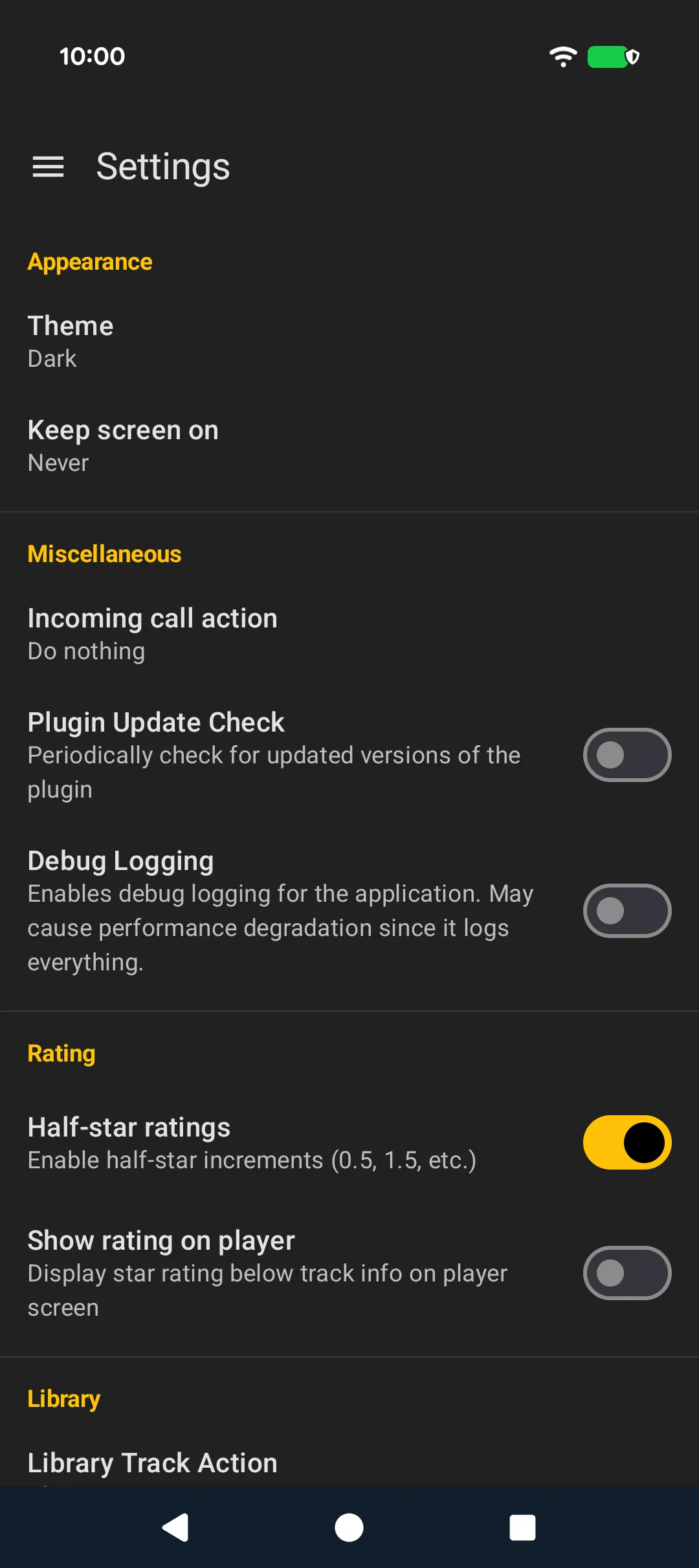
Access Settings from the navigation drawer. Available options:
Appearance
- Theme: Follow System, Light, or Dark
- Keep screen on: Keep the display awake while the app is on screen. Choose Never, While charging, or Always. It is off by default, and sending the app to the background lets the display time out as usual.
Miscellaneous
- Incoming call action: Do nothing, reduce the volume, pause, or stop playback when a call comes in
- Plugin Update Check: Periodically check for a newer version of the plugin. Off by default. A plugin older than the minimum the app supports is always reported, whether this is on or not.
- Debug Logging: Enable detailed logs for troubleshooting
Rating
- Half-star ratings: Enable half-star precision for ratings
- Show rating on player: Display the track rating on the player screen
Library
- Library Track Action: What happens when you tap a track in the library
About
- Open Source Licenses: View third-party library licenses
- License: View the application license
- Version and Build time of the installed app
Connections
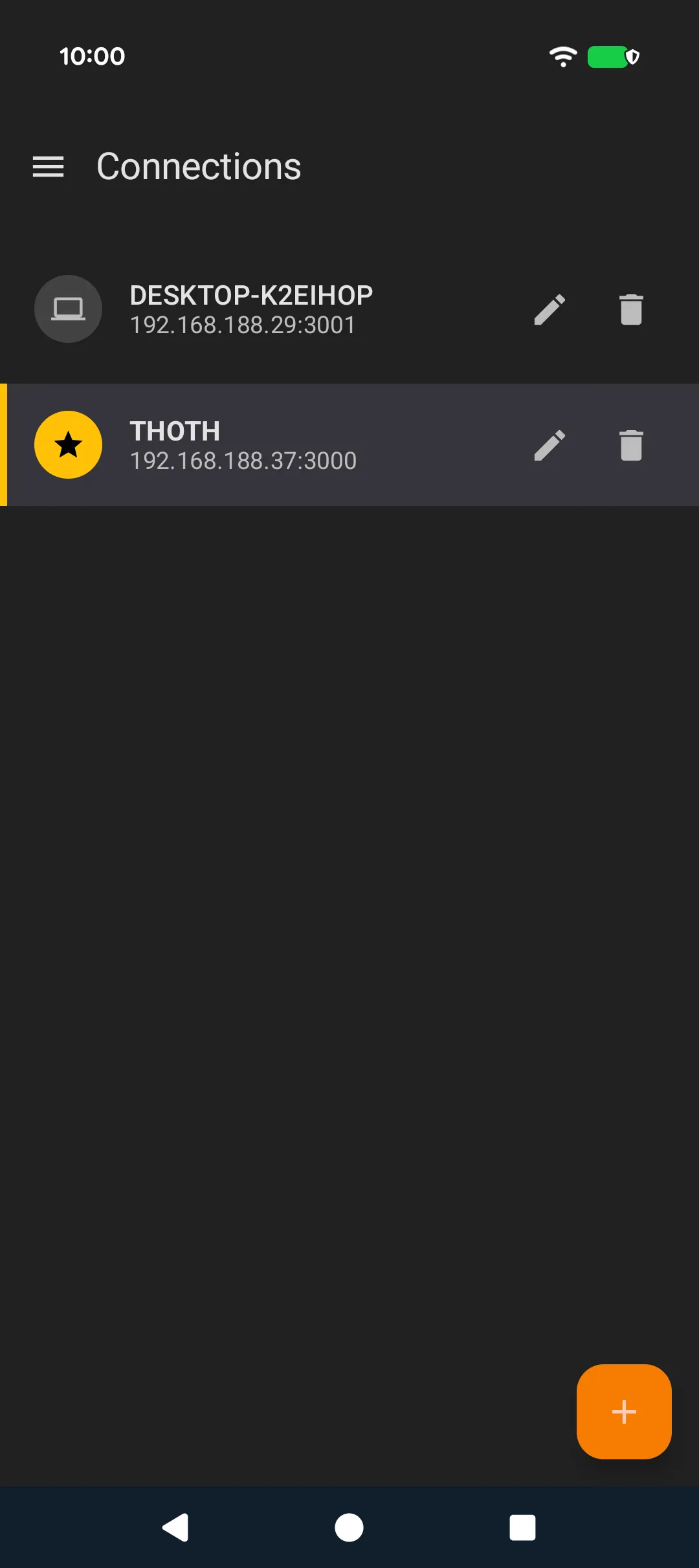
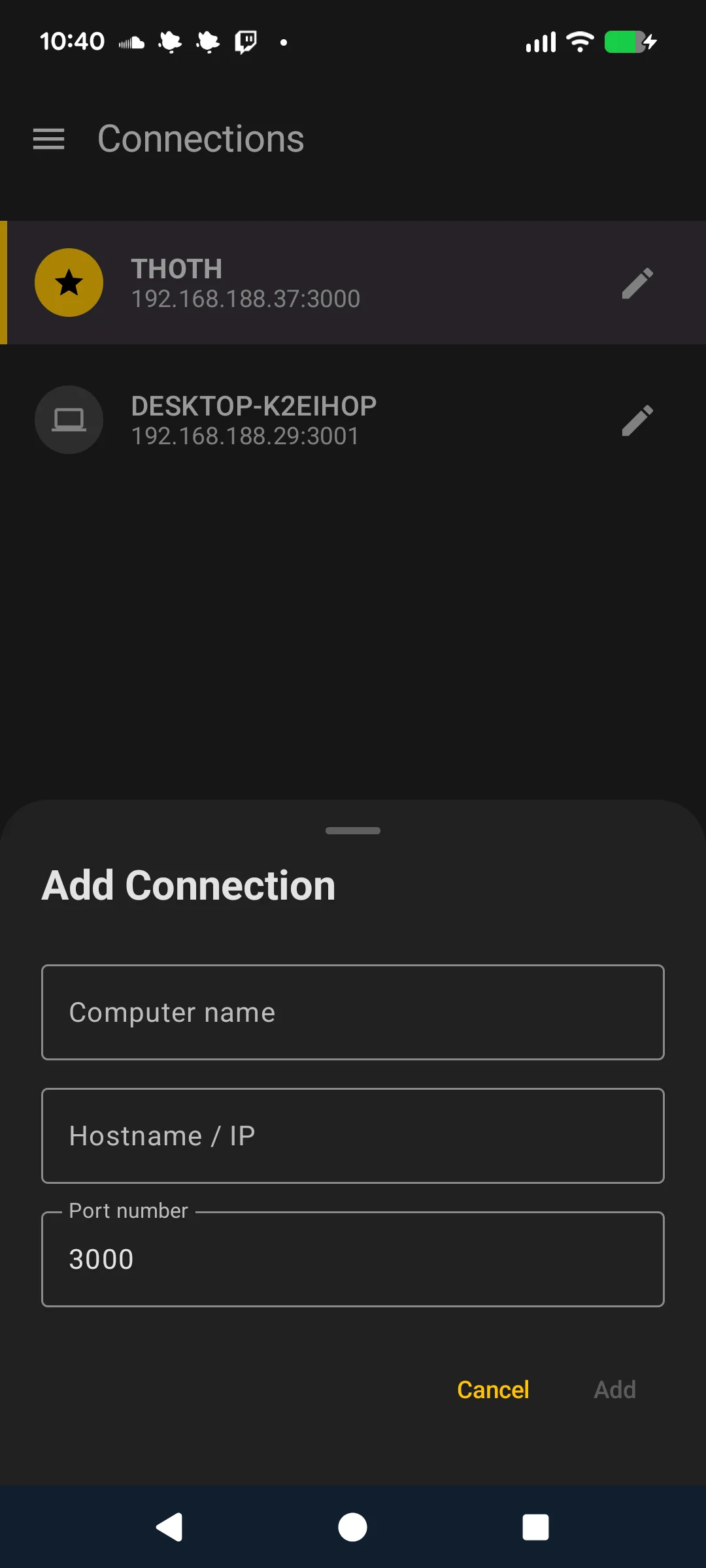
Open Connections from the navigation drawer. Here you can:
- View saved connections with their address and port
- Tap a connection to make it the default, marked with a star. The app connects to the default connection.
- Tap the trash icon to delete a connection, after confirming
- Tap the + button, then Scan to look for the plugin on your network or Add to enter a connection manually
On Android 17, scanning needs local network access. If it is off, the scan says so instead of reporting that nothing was found.
Editing a Connection
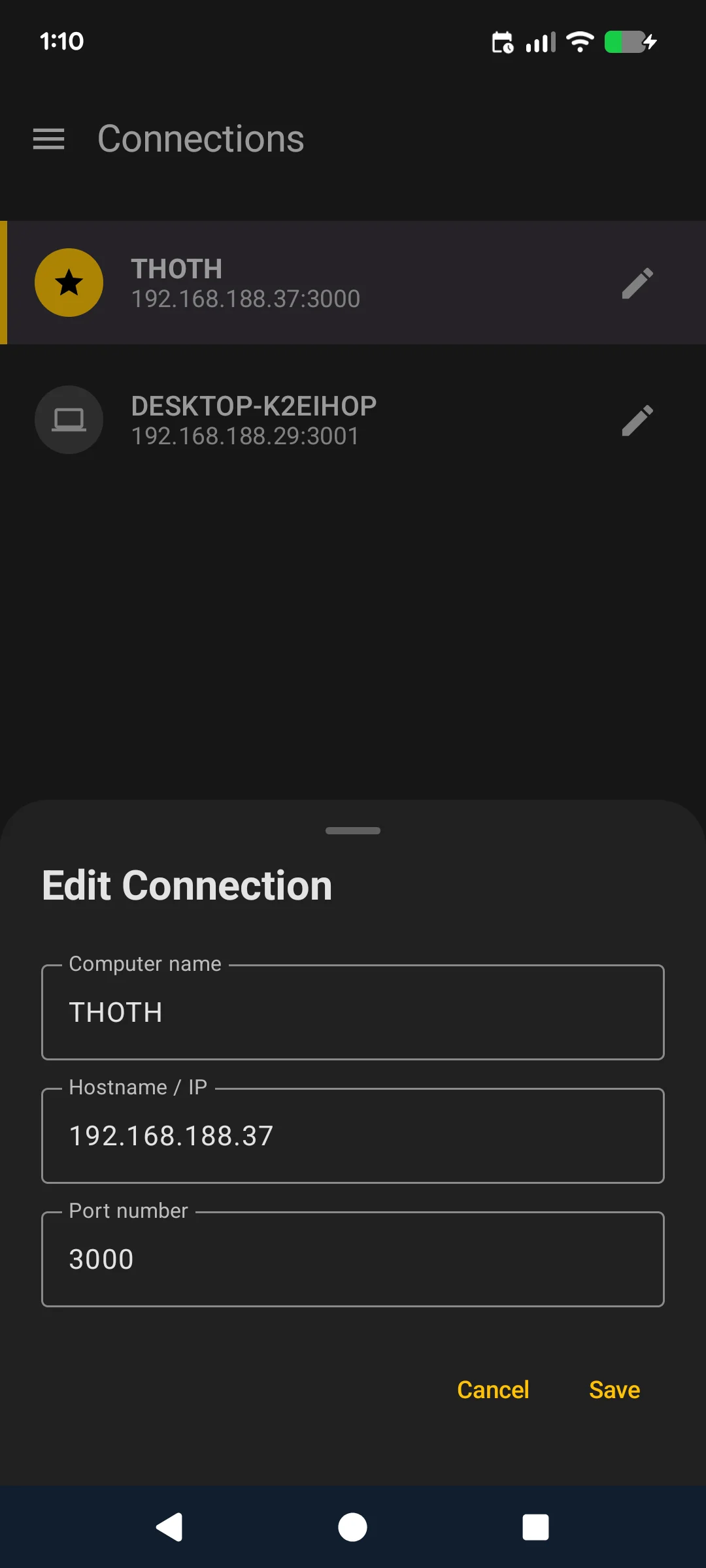
Tap the edit icon (pencil) on an existing connection to modify its address, port, or name.
To add a connection manually, you need the IP address and port (default: 3000) from the MusicBee plugin settings panel.
Help & Feedback
Access Help & Feedback from the navigation drawer. It has two tabs:
- Help: Opens this documentation in a web view
- Feedback: Send feedback with optional device info and debug logs attached
When debug logging is enabled in Settings, you can attach the collected logs to your feedback to help with troubleshooting.