
Player
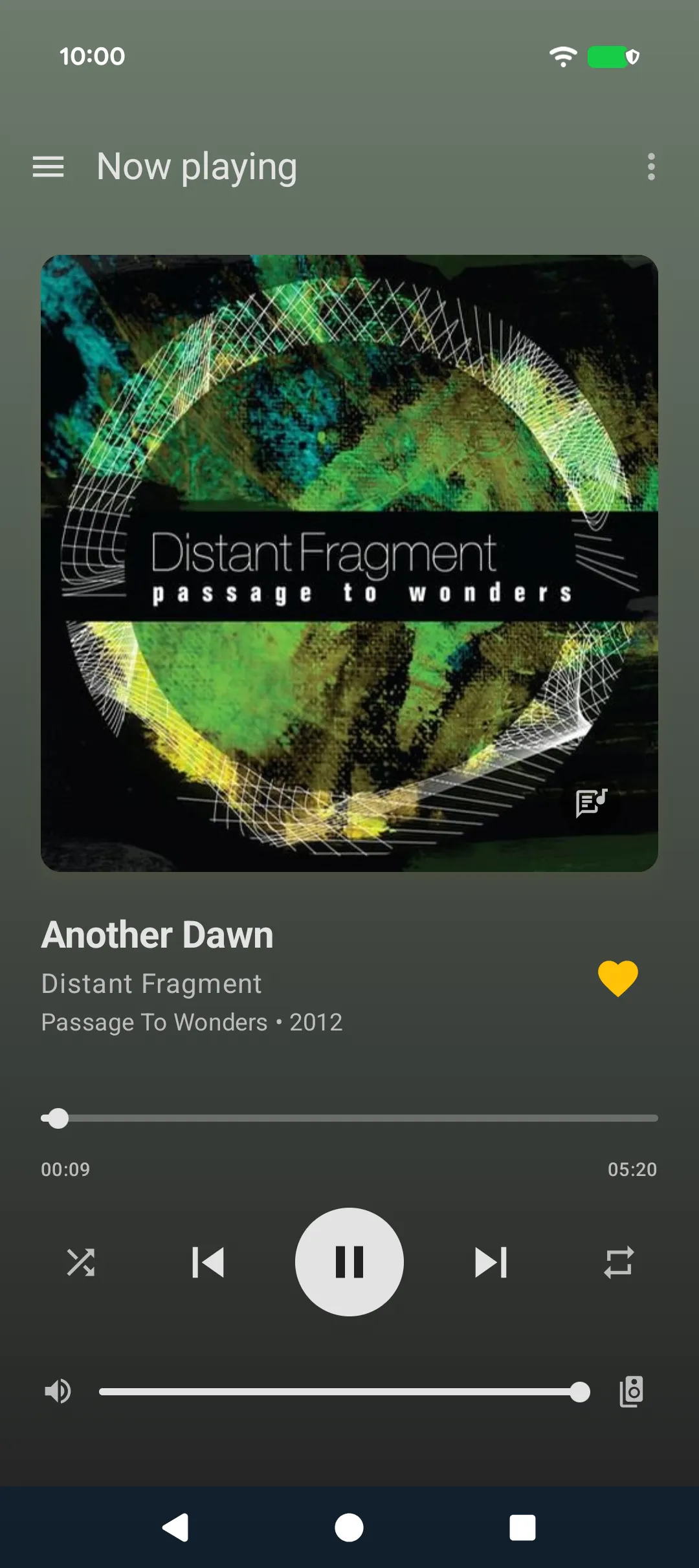
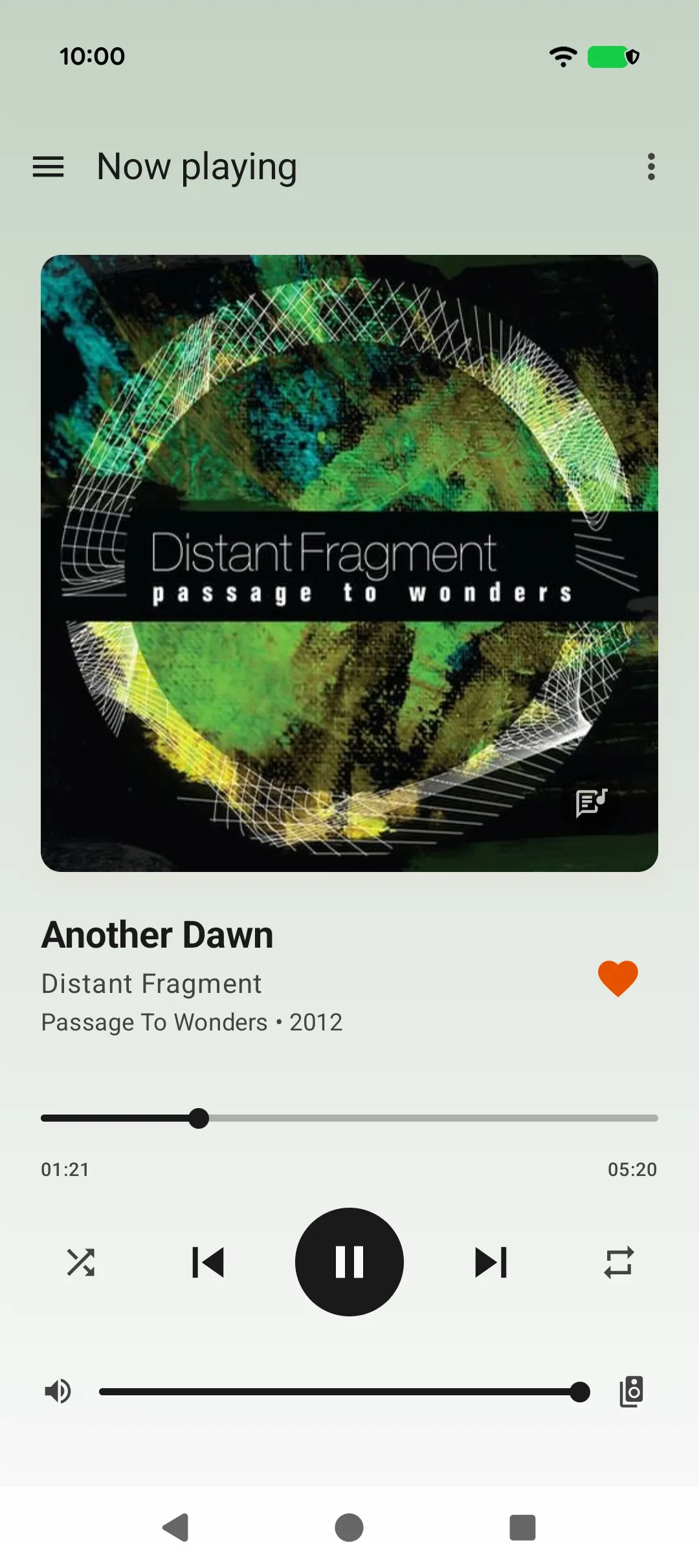
The player is the home screen of the app and supports both dark and light themes. It shows:
- Album art: Cover of the currently playing track, with dynamic color-matched background
- Lyrics button: In the corner of the album art
- Track info: Title, artist, and album with year
- Heart icon: Love or unlove a track on Last.fm
- Progress bar: Current position and total duration; drag to seek
- Playback controls: Shuffle, Previous, Play/Pause, Next, Repeat
- Volume: Mute button and volume slider
- Speaker icon: Open output device selection
Tap Play/Pause to toggle playback. Long-press it to stop playback.
Titles, artists and albums too long to fit scroll across the screen for as long as they are visible, pausing between passes. If you have turned off animations on your device, they are shortened with an ellipsis instead.
For streaming content (radio stations), an animated wave indicator replaces the progress bar, showing elapsed time instead.
Wider Screens
When the screen is wider than it is tall, such as a phone in landscape or a tablet, the album art and the controls sit side by side. On tablets the album art grows with the screen, while the track info and controls stay at a comfortable width.
Player Menu
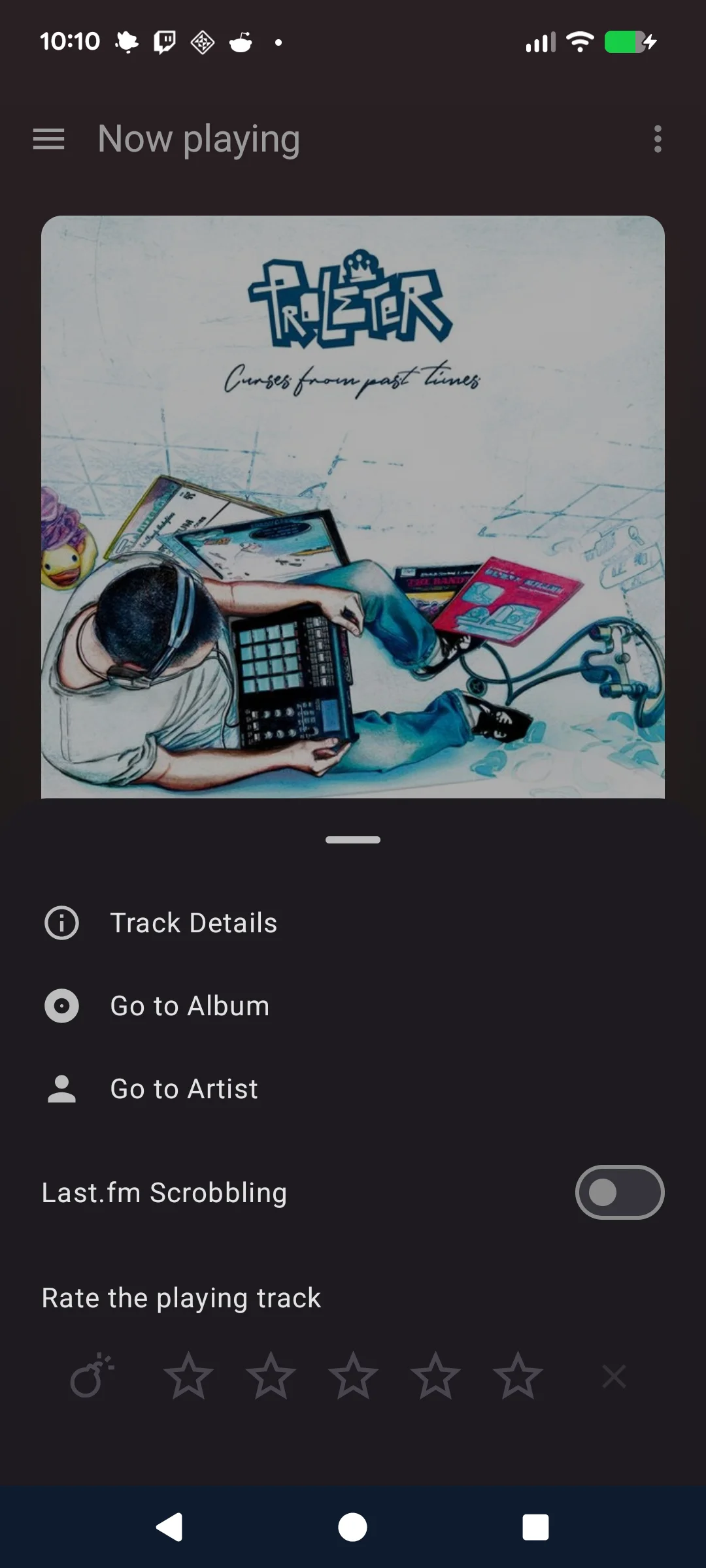
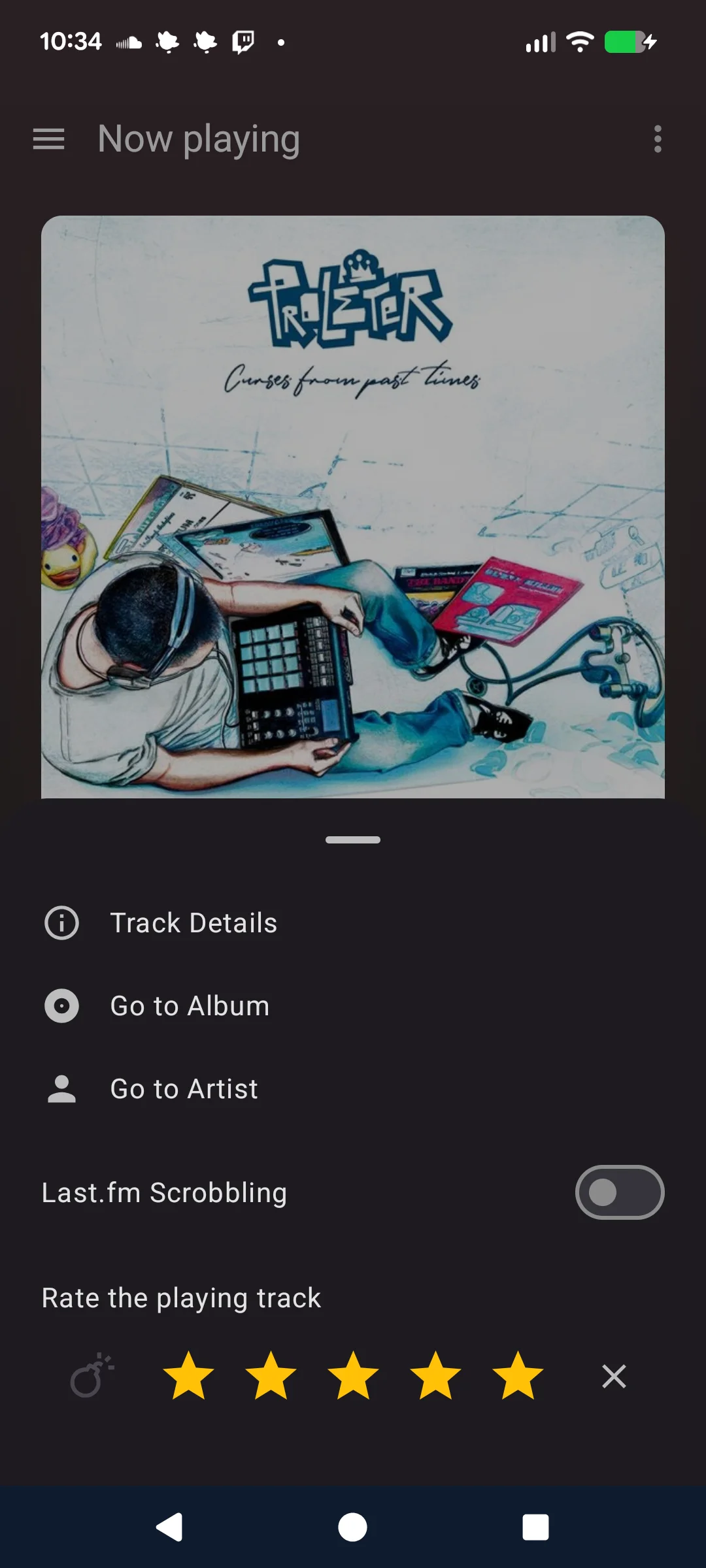
Tap the three-dot menu on the player to open the player menu. From here you can:
- Rate the track: Use the star rating bar
- Track Details: View extended metadata
- Go to Album: Navigate to the album in the library
- Go to Artist: Navigate to the artist in the library
- Last.fm scrobbling: Toggle scrobbling on/off
Ratings
The rating bar in the player menu supports:
- Star ratings: 1 to 5 stars (half-star precision can be enabled in Settings)
- Bomb rating: Mark a track as disliked
- Clear: Remove the rating
The current rating can optionally be displayed on the player screen (enable in Settings).
Track Details
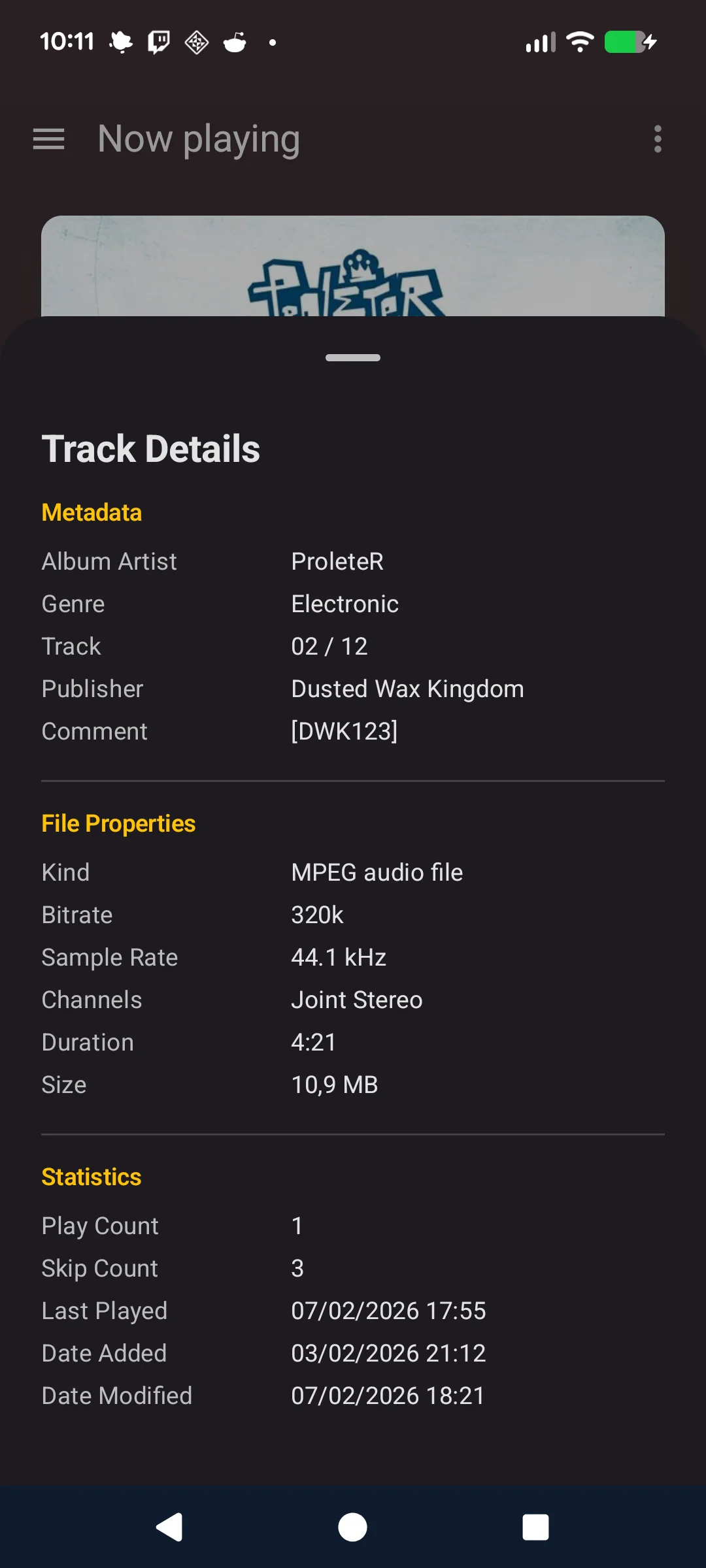
Open Track Details from the player menu to view extended metadata: album artist, genre, composer, track/disc numbers, grouping, publisher, encoder, comments, and file properties (path, size, date, bitrate, channels, format).
Lyrics
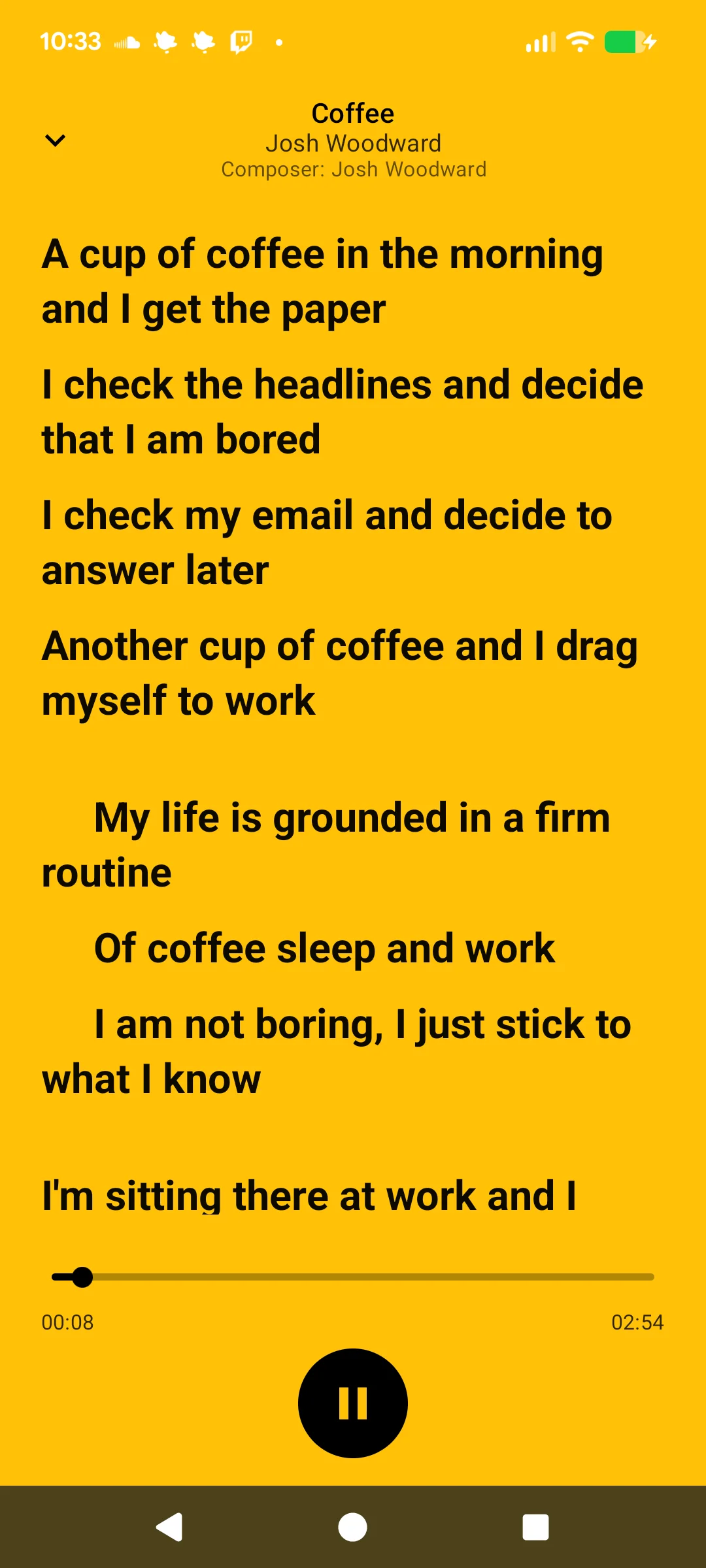
Tap the lyrics button on the album art to open a full-screen lyrics overlay. Lyrics load automatically when the track changes. The overlay includes playback controls and a seek bar so you can control playback while reading.
Output Selection
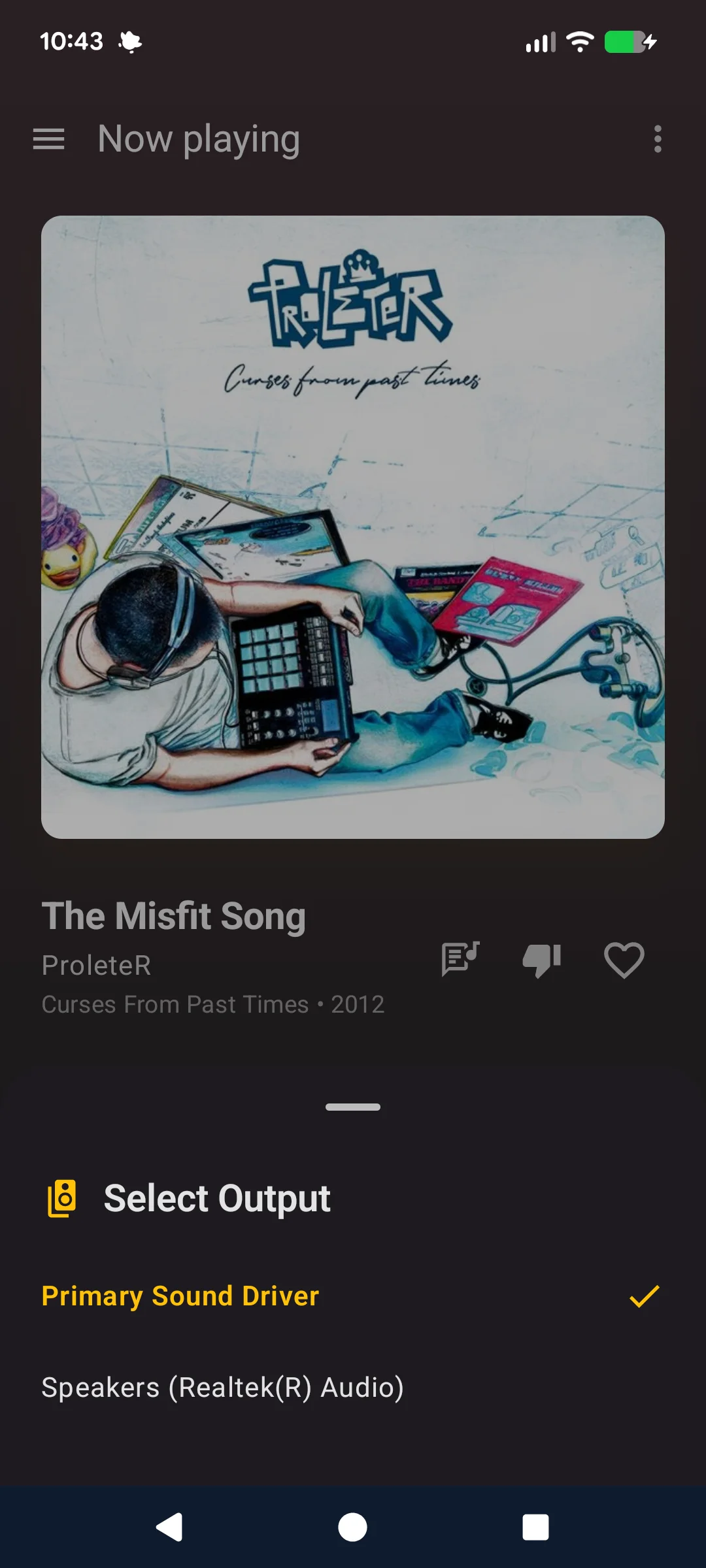
Tap the speaker icon on the player to select the audio output device. A list of available output devices is shown and you can switch between them.