
Getting Started
Installation
There are two ways to install the application:
Google Play Store
Install MusicBee Remote from its Google Play listing. Updates arrive automatically through Play.
New versions reach the open testing channel a few days before everyone else. Anyone can join, and no invitation is required:
- Open the testing page and sign in with the Google account you use on your phone.
- Tap Become a tester. It can take a few minutes for your account to be enrolled.
- Update the app from its Play listing as usual.
To leave, open the testing page again and tap Leave the program. You return to the regular release the next time it is newer than the version you have.
GitHub Release
Download the latest APK from the GitHub Releases page. Two variants are available:
- GitHub release: Clean build without analytics or crash reporting
- Play release: Includes Firebase Crashlytics for crash tracking
To install, download the APK on your device and enable installation from unknown sources if prompted. The Play release APK is the same build as on the Play Store, so the Play Store keeps it updated afterwards. The GitHub release APK you update by hand.
Connection
Local Network Access (Android 17)
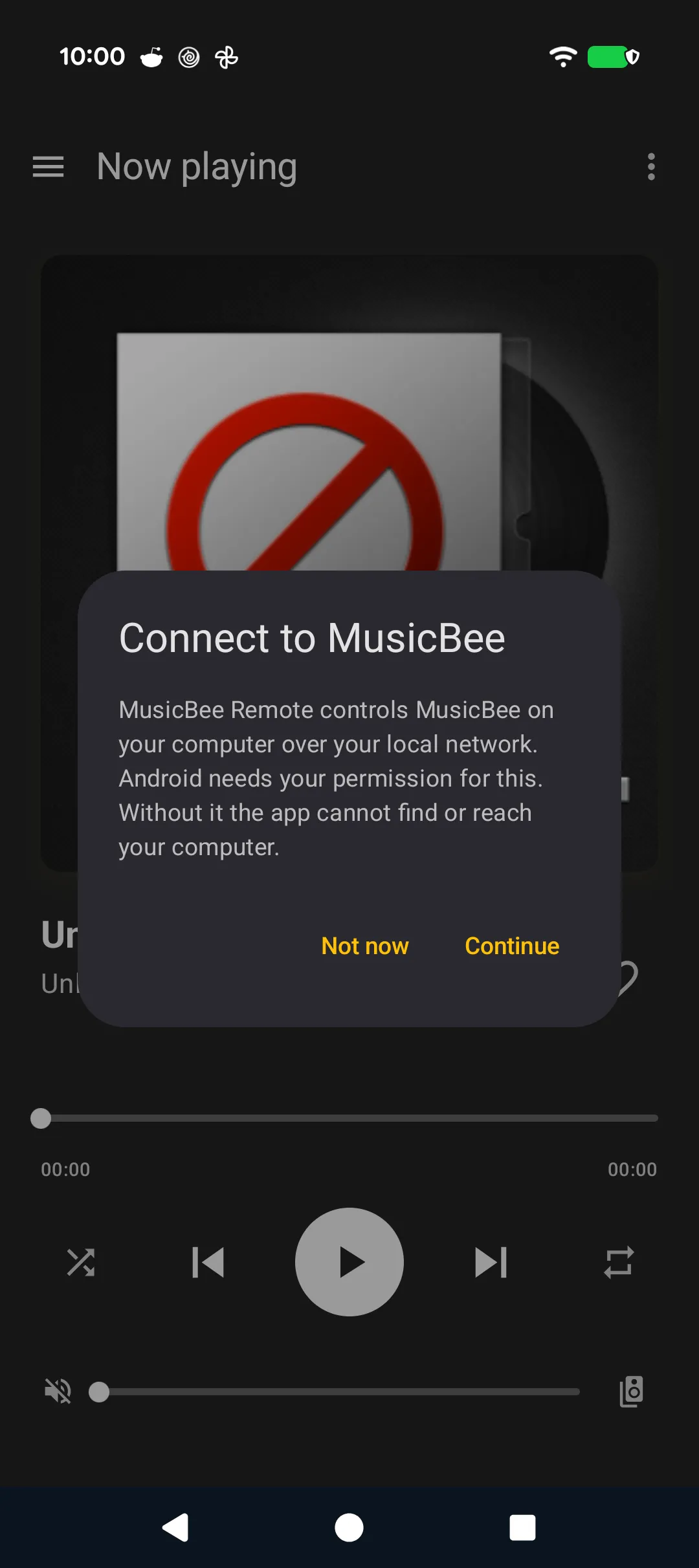
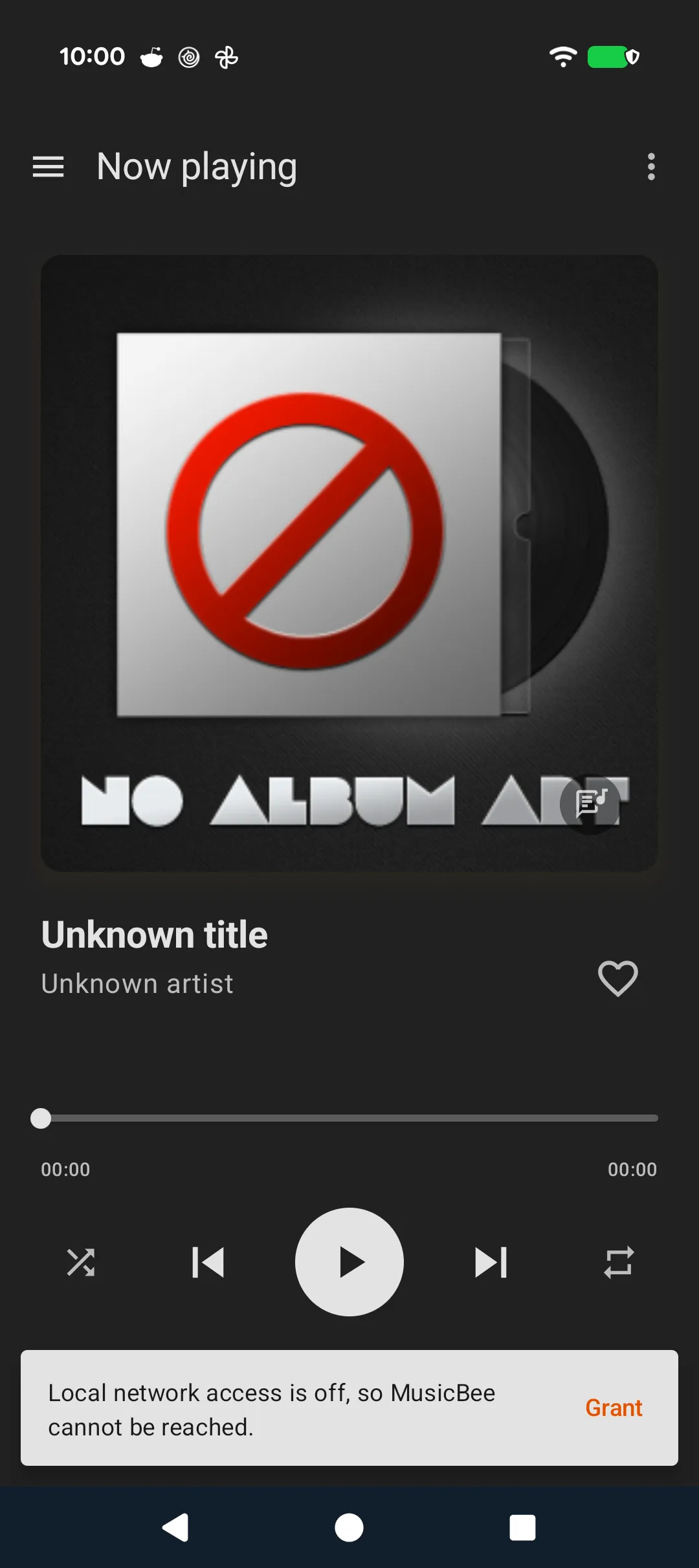
Starting with Android 17, apps need your permission before they can reach other devices on your local network, and MusicBee Remote cannot find or reach your computer without it. The first time you open the app it explains why, then shows the system prompt. The prompt talks about "nearby devices" rather than MusicBee, which is why the explanation comes first.
If you tap Not now or decline the prompt, the app does not keep trying to connect. It shows a notice saying local network access is off, and the drawer's connection status reads Permission required. Tap Grant on the notice, or the connection button in the drawer, to see the prompt again. If you have declined twice, Android stops showing the prompt, and the app opens its system settings page instead, where you can allow the permission under Permissions.
Earlier Android versions do not ask for this permission.
Automatic Discovery
When you first start the connection, the app automatically attempts to discover the MusicBee plugin on your local network. If a host is found, it connects without requiring any manual configuration.
Navigation Drawer
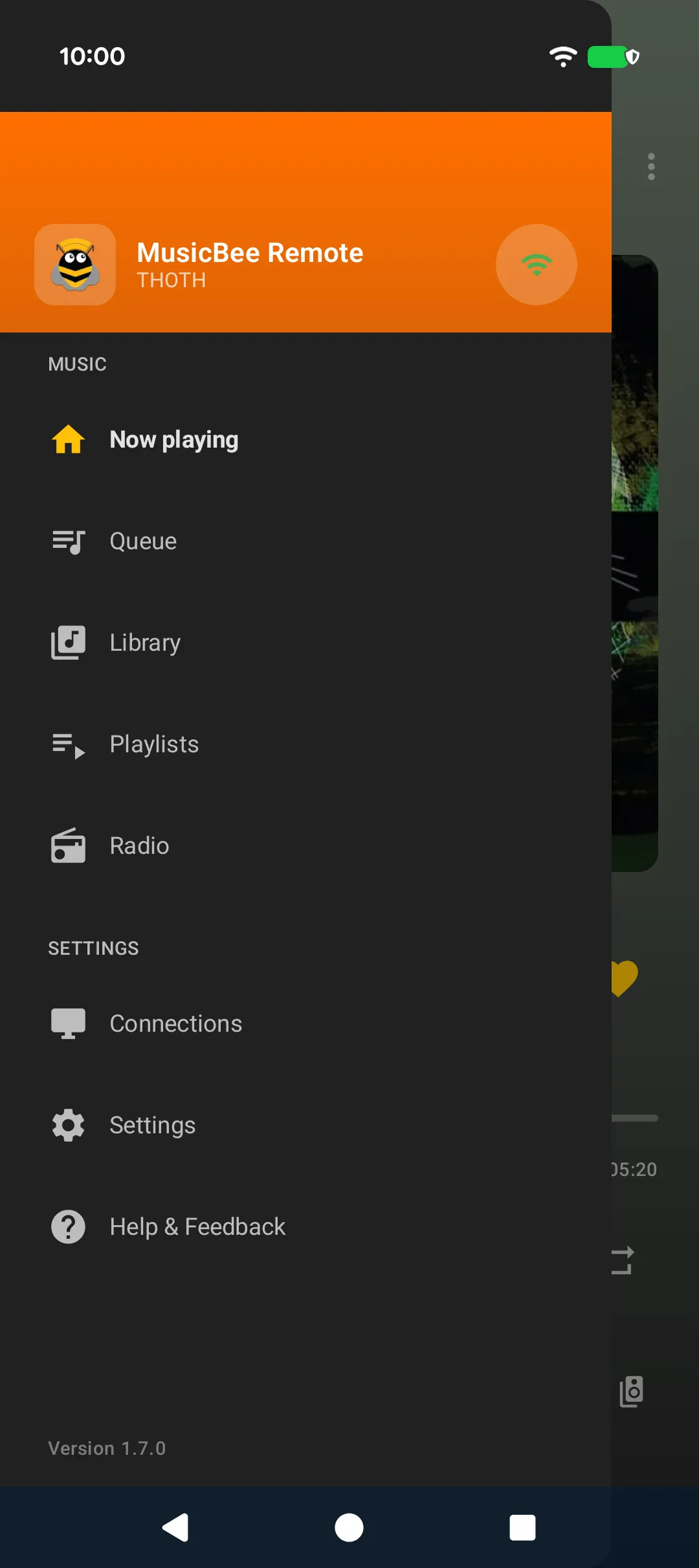
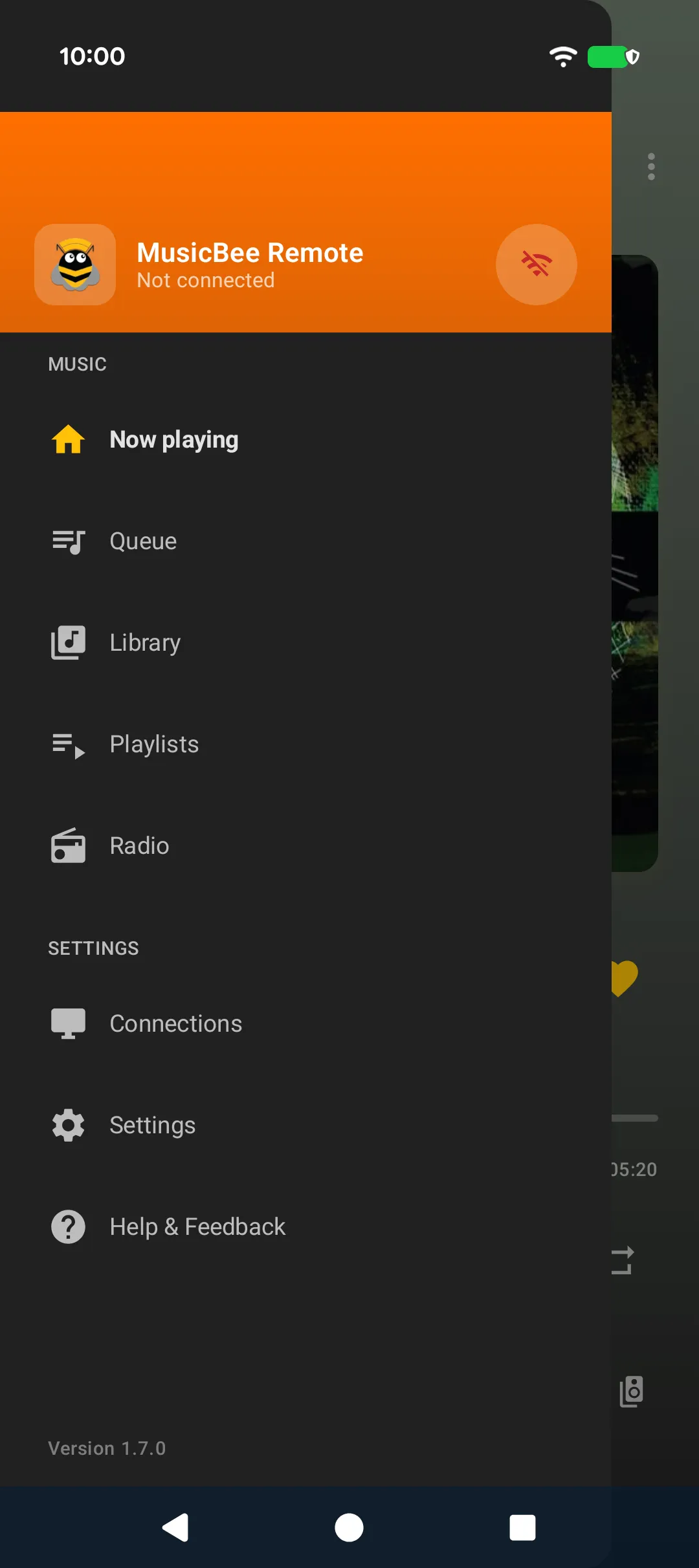
The navigation drawer is the main way to move between screens. At the top, the connection button shows the current status:
- Green: Connected (shows the connection name)
- Animating: Connecting or reconnecting (shows the attempt count)
- Red: Not connected, or local network access is off
Tapping the connection button while connected disconnects. In any other state it starts a fresh connection attempt, including while the app is already trying to connect, so you never need to restart the app to get it connecting again.
Below it you'll find navigation to all screens: Now playing, Queue, Library, Playlists, Radio, Connections, Settings, and Help & Feedback.
On wider screens the drawer adapts to the space available: an unfolded foldable or a small tablet shows a navigation rail along the side, and a large tablet keeps the full drawer open next to the content. A phone in landscape keeps the regular drawer.
Auto-Reconnect
If the connection drops unexpectedly, the app tries to reconnect 5 times over about two minutes, waiting a little longer before each attempt. The drawer shows reconnection progress. If all attempts fail, the app stops trying and its background service shuts down to save battery.
The app does not reconnect on its own when your network comes back. Once you are back on your network, or MusicBee is running again, tap the connection button in the drawer to connect.