
Settings & Connections
Settings
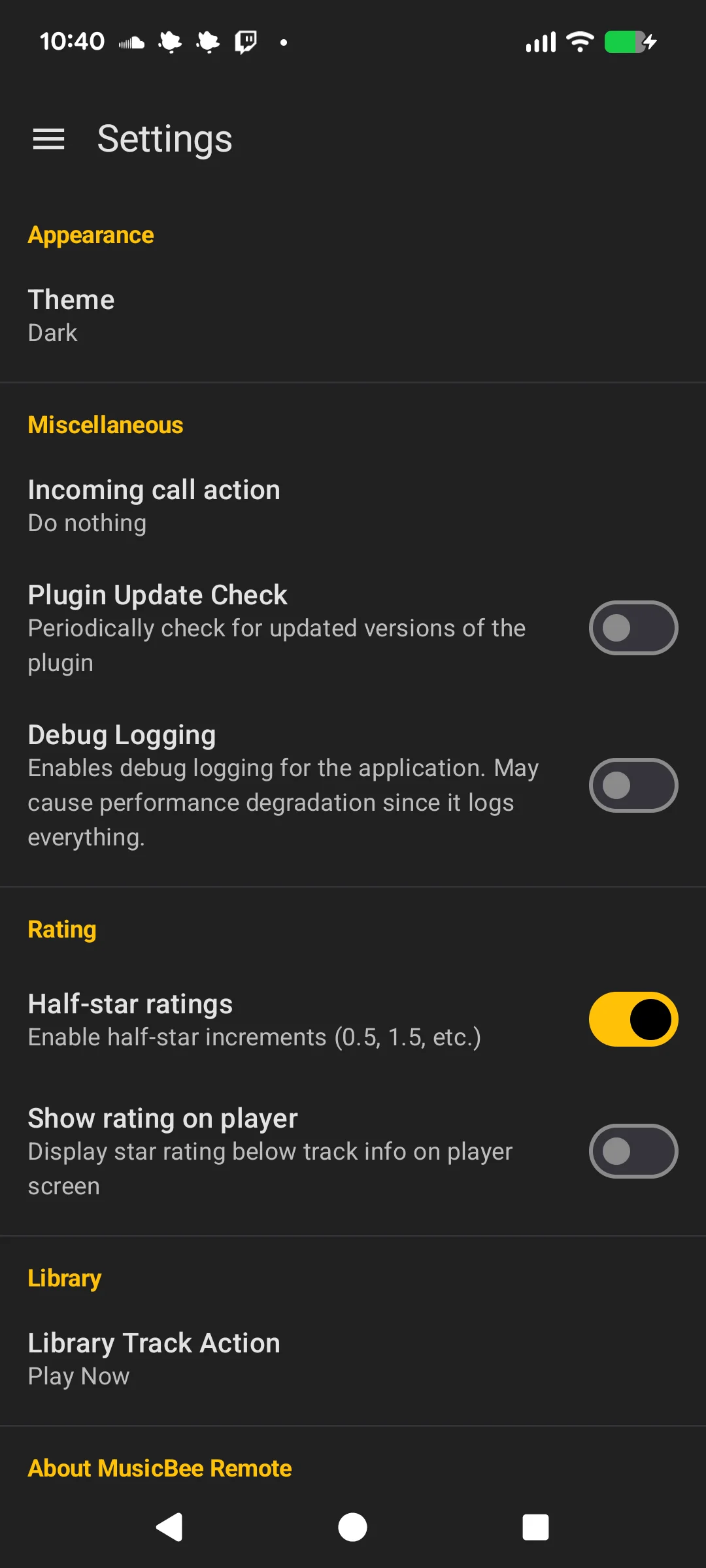
Access Settings from the navigation drawer. Available options:
Appearance
- Theme: Choose between Dark, Light, or System default
Playback
- Plugin updates: Check for updated plugin versions
- Debug logging: Enable detailed logs for troubleshooting
- Incoming call action: Reduce volume, pause, or stop playback on incoming calls
- Track default action: What happens when tapping a track in the library
- Half-star ratings: Enable half-star precision for ratings
- Show rating on player: Display the track rating on the player screen
Links
- App License: View the application license
- Open Source Licenses: View third-party library licenses
Connection Manager
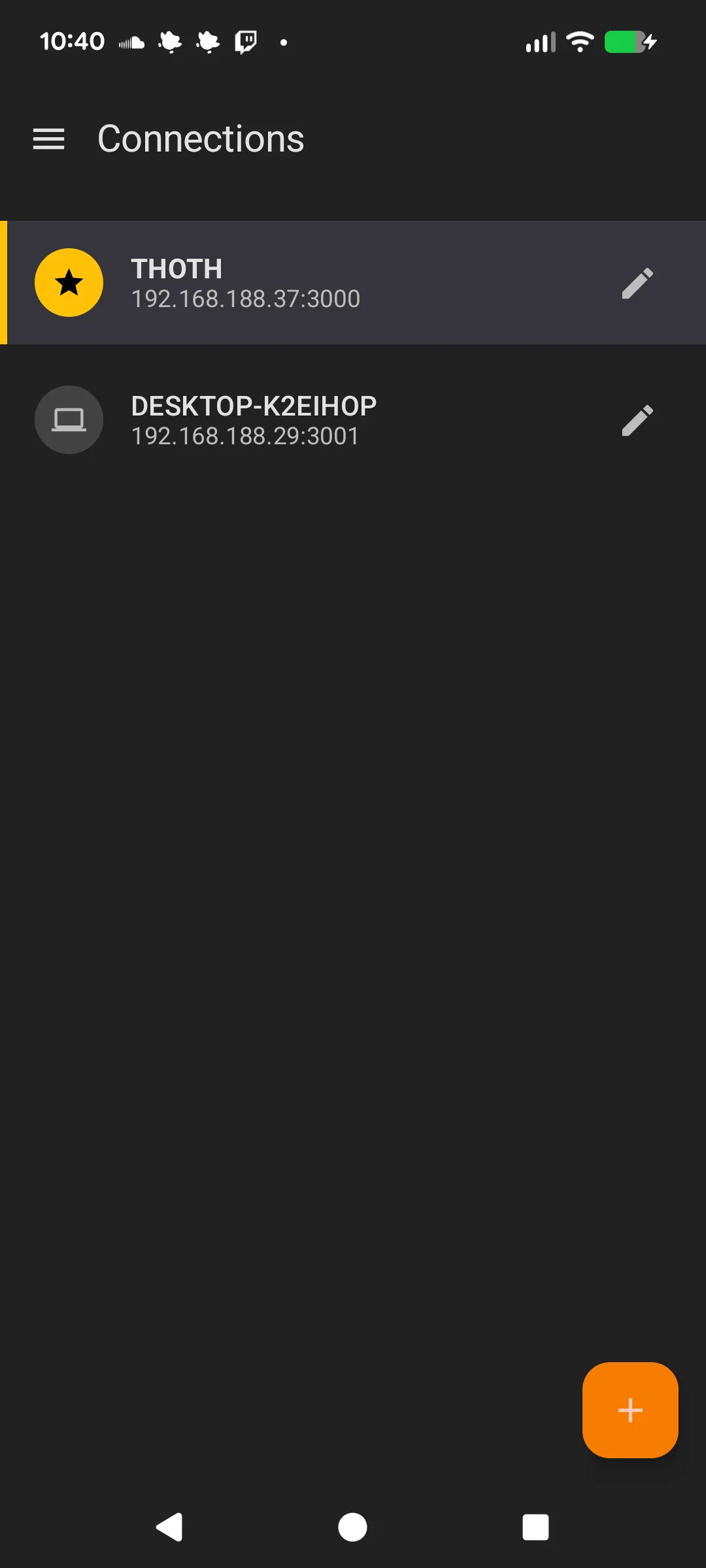
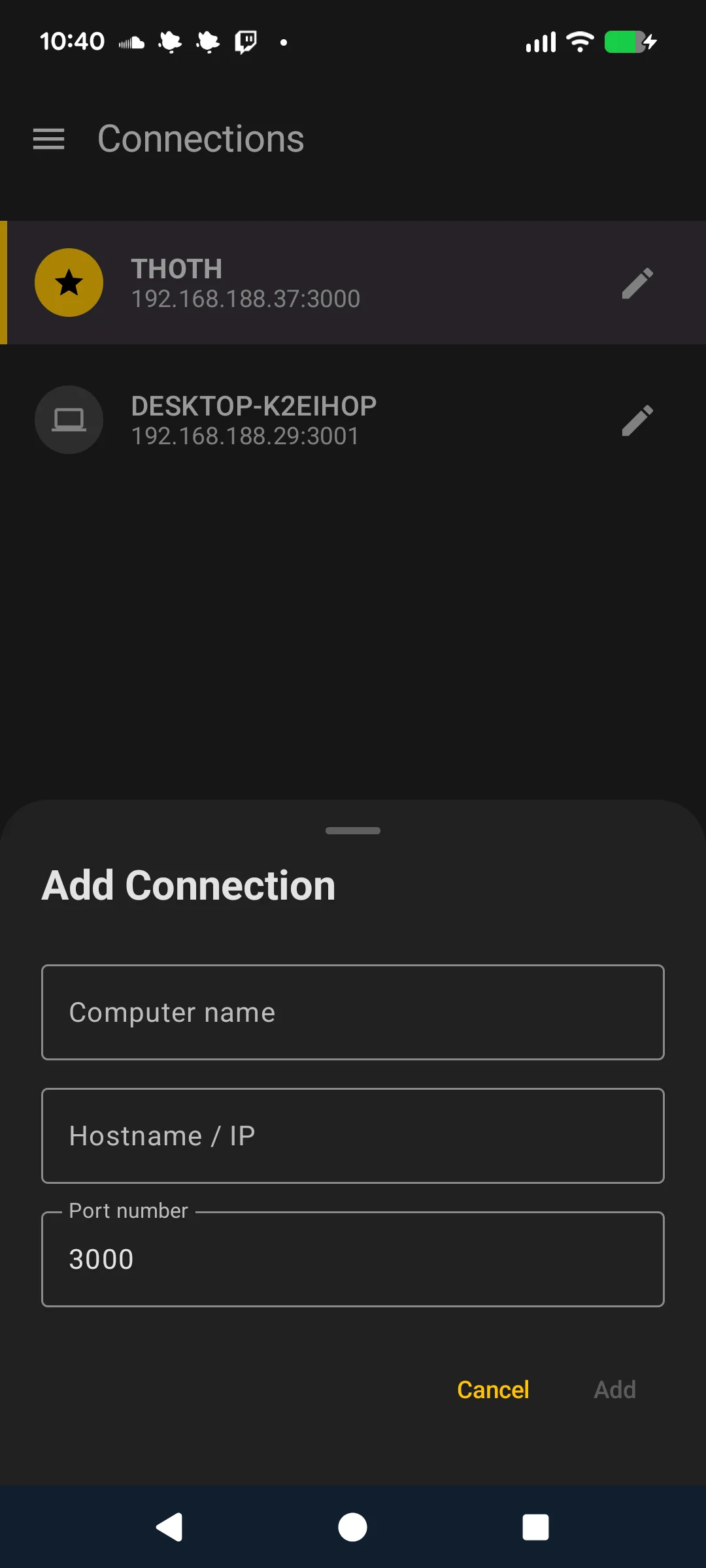
Access the Connection Manager from the navigation drawer. Here you can:
- View saved connections with their address and port
- Set a default connection (indicated by a checkmark)
- Swipe to delete a connection
- Scan for connections on the network
- Tap the + button to add a connection manually
Editing a Connection
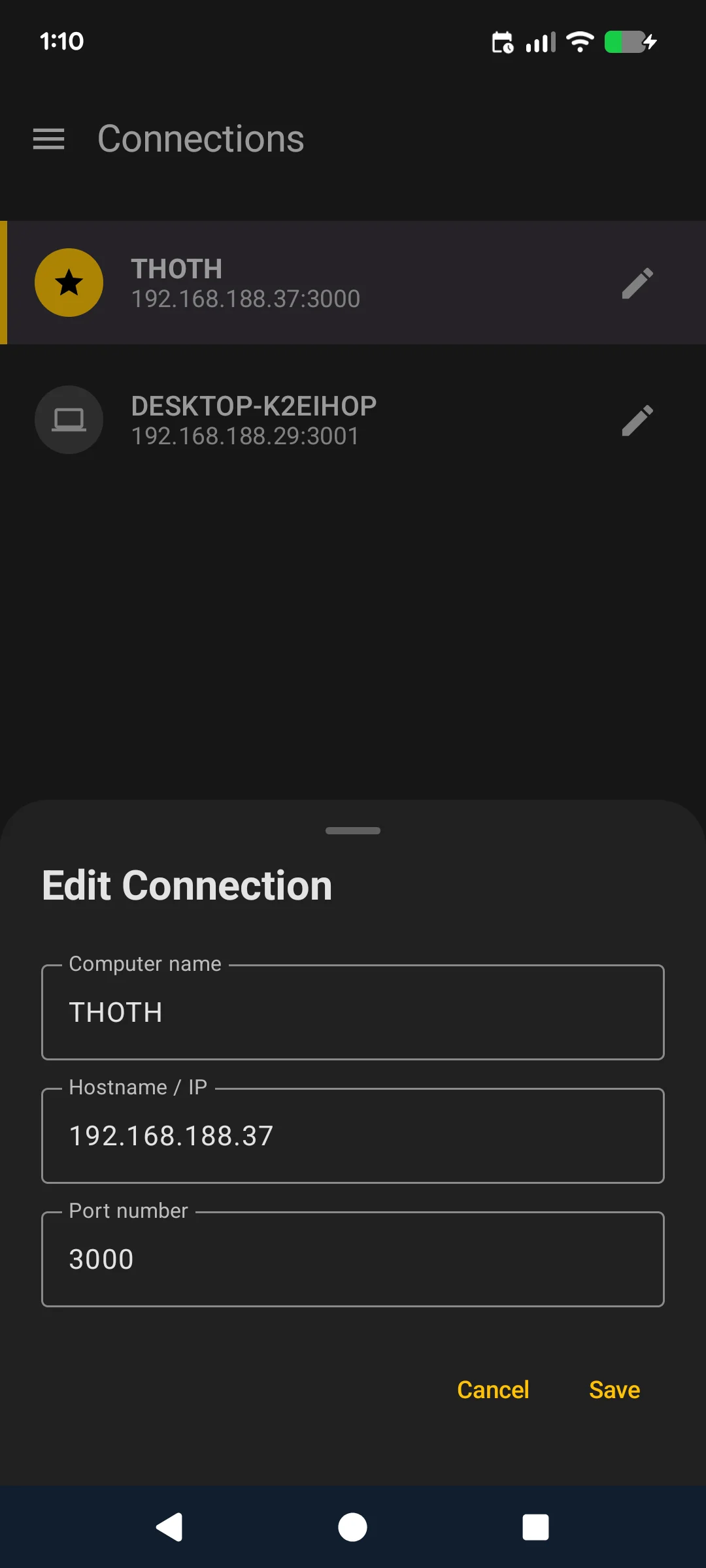
Tap the edit icon (pencil) on an existing connection to modify its address, port, or name.
To add a connection manually, you need the IP address and port (default: 3000) from the MusicBee plugin settings panel.
Help & Feedback
Access Help & Feedback from the navigation drawer. It has two tabs:
- Help: Opens this documentation in a web view
- Feedback: Send feedback with optional device info and debug logs attached
When debug logging is enabled in Settings, you can attach the collected logs to your feedback to help with troubleshooting.